
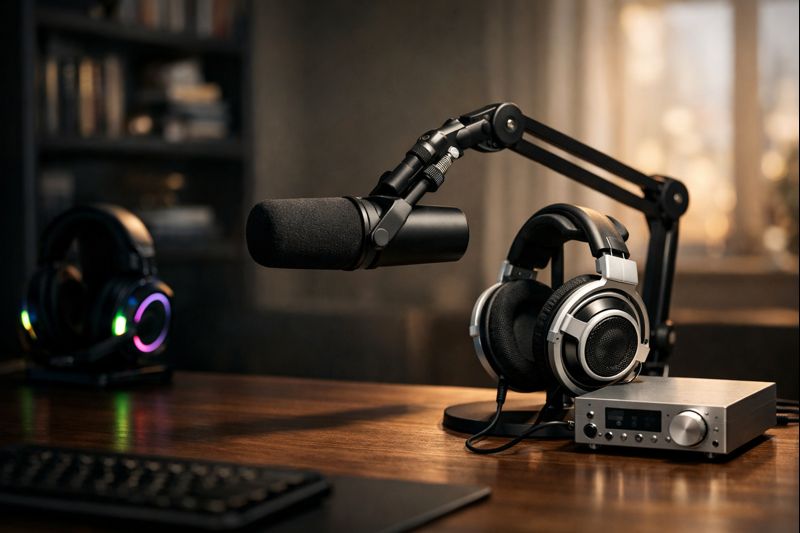
I’ve been working in a hybrid home/office environment for over 15 years. Back in 2011, when the world was just figuring out what “remote work” really looked like, a pair of wired Apple earbuds was considered “pro.” Fast forward to 2026, and the landscape has changed. We are no longer just “hopping on a call.” We are conducting multi-million dollar deals, managing global teams, and building brands through a lens and a microphone.
Yet, I still see high-level executives and seasoned pros showing up to Zoom calls wearing bulky, glowing gaming headsets that make them look like they’re about to drop into a Warzone match rather than lead a quarterly review.
Even worse? The audio quality is often subpar.
If you want to be taken seriously in a digital-first world, your audio needs to reflect your expertise. In this guide, we’re going to dive deep into why high-fidelity audio is the single most important investment for your home office, why gaming headsets fail in a professional setting, and the exact “Good, Better, Best” setups you should buy to dominate your next conference call.
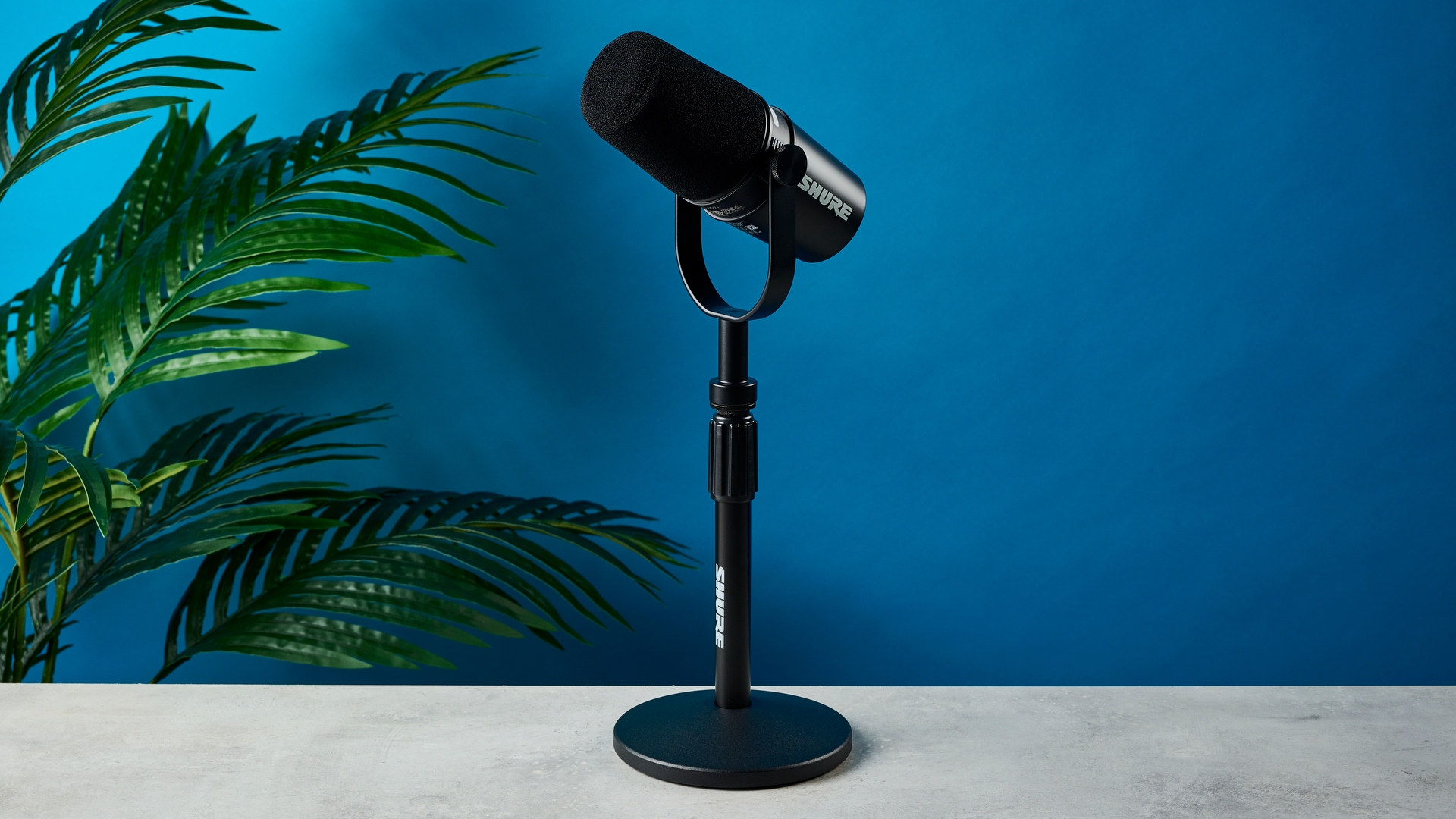
The “Silent Killer” of Productivity: Why Audio Quality Matters
Most people obsess over their webcam. They buy 4K cameras and ring lights, but they neglect their sound. This is a fundamental mistake.
1. The Cognitive Load Problem
Scientific research has shown that poor audio quality increases “cognitive load” on your listeners. When your voice is tinny, muffled, or competing with background hiss, the brains of your colleagues have to work harder to decode what you’re saying. This leads to Zoom Fatigue. If you’ve ever finished a meeting feeling inexplicably exhausted, it might not be the content—it might be the audio.
2. Authority and Trust
There is a psychological phenomenon where we associate clear, deep, and resonant audio with authority. A “thin” sounding microphone makes you sound younger and less confident. A high-fidelity setup provides that “radio voice” (the proximity effect) that commands attention and builds trust.
3. Professionalism vs. Hobbyist
Appearances matter. If you are a consultant charging $300/hour, appearing on screen with a plastic headset and an RGB-lit microphone says “hobbyist.” A clean, professional audio setup says “expert.”
Why Gaming Headsets Fail the Professional Test
I get it. Gaming headsets are convenient. They have a mic, they have speakers, and they’re often wireless. But for the serious remote professional, they are almost always the wrong choice.
- Tuned for Explosions, Not Voices: Gaming headsets are EQ-ed for “immersion.” They boost the bass (for explosions) and the treble (for footsteps). This makes human voices sound unnatural and fatiguing over a two-hour meeting.
- The Mic Trap: Most gaming headset microphones use aggressive compression to cut out background noise. While this keeps your dog’s barking at bay, it also makes your voice sound like you’re talking through a tin can.
- Aesthetic Mismatch: You wouldn’t wear a tie-dye tank top to a boardroom. Wearing a bulky headset with a glowing “G” on the side sends the same message.
- Connectivity Issues: Bluetooth gaming headsets often suffer from latency and “Hands-Free Profile” issues on Windows and Mac, which drops your audio quality to 8kHz (telephone quality) the moment the microphone is activated.
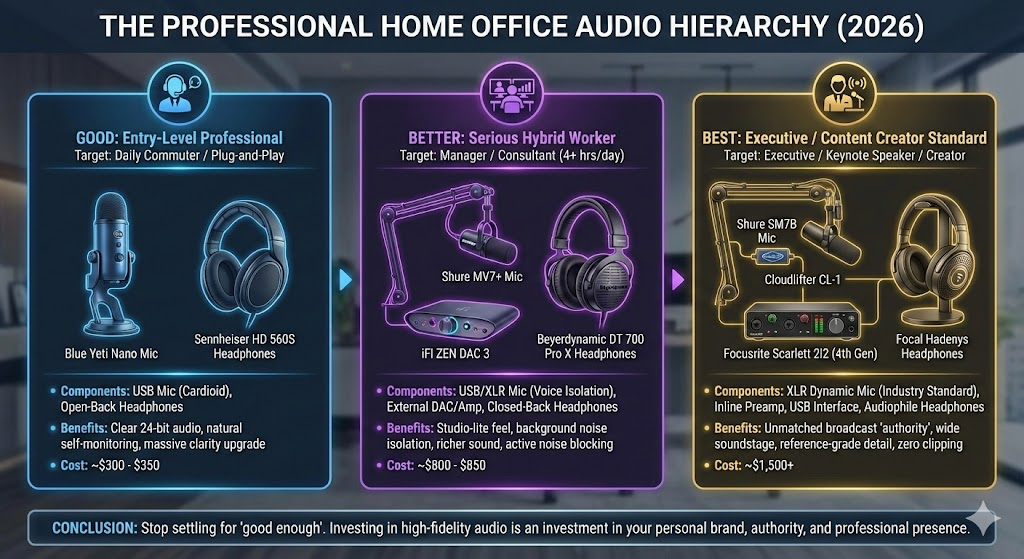
The Home Office Audio Hierarchy: Good, Better, Best
To help you navigate the world of high-fidelity audio, I’ve broken down three tiers of setups. Each of these is a massive upgrade over a standard headset or laptop mic.
1. The “Good” Setup: The Entry-Level Professional
Target: The daily commuter who needs a reliable, “plug-and-play” upgrade without the complexity of extra wires.
- Microphone: Blue Yeti Nano
- Review: The Yeti Nano is a classic for a reason. It offers a cardioid pickup pattern that ignores the sound of your keyboard and focuses on your voice. It’s compact and looks professional on a desk.
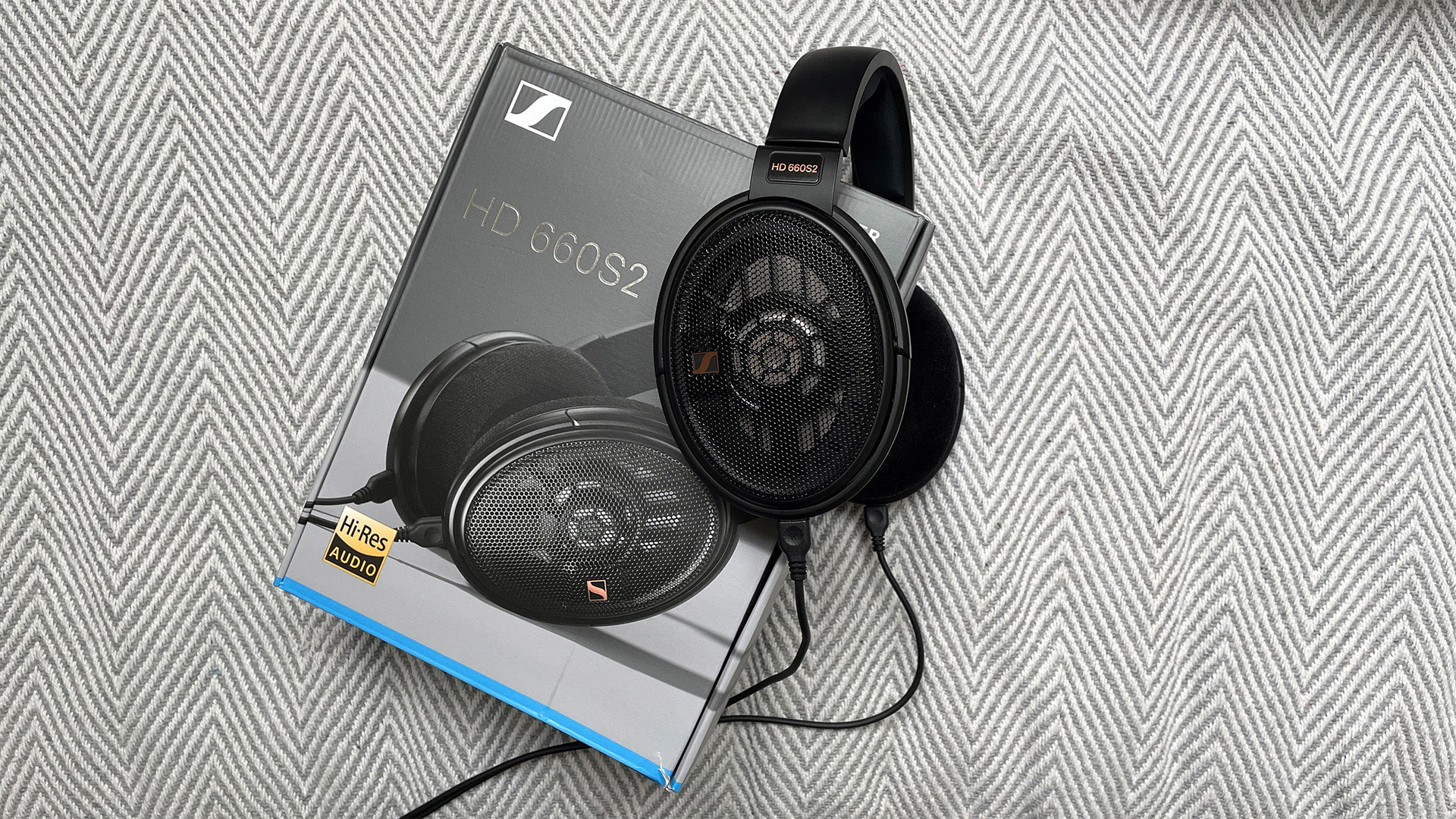
- Headphones: Sennheiser HD 560S
- Review: These are “open-back” headphones. This is crucial for calls because it allows you to hear your own voice naturally (no “clogged ear” feeling), which prevents you from shouting during meetings.
- Why this works: You get clear, 24-bit audio directly via USB. It’s a massive step up in clarity for under $300 total.
2. The “Better” Setup: The Serious Hybrid Worker
Target: The manager or consultant who spends 4+ hours a day on calls and wants a “studio-lite” feel.
- Microphone: Shure MV7+
- Review: The MV7+ is the “little brother” to the legendary SM7B used by every major podcaster. It has a “Voice Isolation Technology” that is purely hardware-based, making you sound like you’re in a treated studio even if your room is echoey. It offers both USB and XLR connections.
- External DAC/Amp: iFi ZEN DAC 3
- Review: This is where “Hi-Fi” really starts. Instead of using your computer’s cheap internal sound card, the ZEN DAC 3 processes the audio externally. It makes the people you’re talking to sound like they are in the room with you.
- Headphones: Beyerdynamic DT 700 Pro X
- Review: These are closed-back, meaning they block out the noise of your kids or the dishwasher. They are built like tanks and are comfortable enough to wear for an 8-hour shift.
3. The “Best” Setup: The Executive / Content Creator Standard
Target: The professional who records video content, hosts webinars, or simply demands the absolute best audio possible.
- Microphone: Shure SM7B with a Cloudlifter CL-1
- Review: This is the industry standard. It requires an XLR interface (see below), but the richness and “authority” it adds to a voice is unmatched. It’s the last microphone you’ll ever need to buy.
- Audio Interface: Focusrite Scarlett 2i2 (4th Gen)
- Review: This acts as your external sound card and preamp. The 4th Gen version has incredible “Auto Gain” features, so you never have to worry about your audio clipping or being too quiet.
- Headphones: Focal Hadenys or Sennheiser HD 800 S
- Review: We are entering true audiophile territory here. These headphones provide a “soundstage” that is wide and precise. You’ll hear the subtle inflections in a client’s voice that you’d miss on any other setup.
Professional Audio Comparison Table: Good, Better, Best
To help you make an informed decision for your home office audio for conference calls, I’ve broken down the key components, estimated total costs, and the specific professional profile each setup serves.
| Tier | Total Estimated Cost | Key Components | Primary Use Case |
| The “Good” Setup | ~$300 – $350 | Blue Yeti Nano, Sennheiser HD 560S | Professionals needing a quick, reliable plug-and-play upgrade from standard headsets. |
| The “Better” Setup | ~$800 – $850 | Shure MV7+, iFi ZEN DAC 3, Beyerdynamic DT 700 Pro X | Managers and consultants on calls 4+ hours a day who need active noise isolation and studio clarity. |
| The “Best” Setup | ~$1,500+ | Shure SM7B, Cloudlifter CL-1, Focusrite Scarlett 2i2, Focal Hadenys | Executives, keynote speakers, and content creators who require “broadcast” authority and reference-grade audio. |
Export to Sheets
Technical Deep Dive: Why These Components Matter
If you’re going to spend your hard-earned money on professional gear, you need to understand the “why” behind the technology. Over my 15 years in this space, I’ve seen countless “gadgets” come and go. The gear listed above represents the gold standard because it solves specific technical problems inherent in remote work.
1. The Proximity Effect and Mic Placement
Most people treat their microphone like a piece of furniture—something that just sits on the desk. However, to get that rich, “radio” voice, you need to understand the Proximity Effect. This is a physical phenomenon where lower frequencies are boosted as the sound source (your mouth) gets closer to the microphone capsule.
- The 2-6 Inch Rule: For a microphone like the Shure SM7B, you want to be about 2 to 6 inches away. This creates a deep, intimate sound that projects confidence.
- The Solution: This is why I always recommend a high-quality boom arm. It allows you to bring the mic to your face when you’re speaking and swing it out of the way when you’re not, keeping your desk clear and professional.
2. Room Acoustics: The Hidden Enemy
Even the best microphone in the world will sound terrible in a room with a lot of “slap-back” echo. If your home office has hardwood floors, glass desks, and bare walls, your audio will sound “boxy.”
- Quick Fixes: You don’t need a professional recording booth. Adding a thick rug under your desk, hanging some heavy curtains, or even having a bookshelf full of irregularly shaped books behind you can act as a natural diffuser.
- The Hardware Solution: Microphones like the Shure MV7+ use a dynamic capsule rather than a condenser. Dynamic mics are naturally less sensitive to distant sounds, meaning they focus on you and ignore the echo bouncing off your windows.
3. Bit Depth and Sample Rates: Why “CD Quality” isn’t Enough
You’ll see numbers like 24-bit / 48.0 kHz on these devices.
- Bit Depth (24-bit): This is the dynamic range. It allows for a greater difference between your quietest whisper and your loudest laugh without the audio “clipping” or distorting.
- Sample Rate (48.0 kHz): This is the industry standard for video. It ensures your audio stays perfectly synced with your webcam. Standard gaming headsets often struggle with this, leading to that annoying “delayed lip-sync” issue on long Zoom calls.
4. The Role of the External DAC
Your computer is a noisy environment electrically. The internal components create “EMI” (Electromagnetic Interference) that manifests as a faint hiss or a “flat” sound in your headphones. An external DAC (Digital-to-Analog Converter) moves that processing outside of the computer. In a professional context, a DAC like the iFi ZEN DAC 3 makes voices more intelligible, separating the frequencies so that the person speaking doesn’t get lost in the “mud” of background noise on their end.
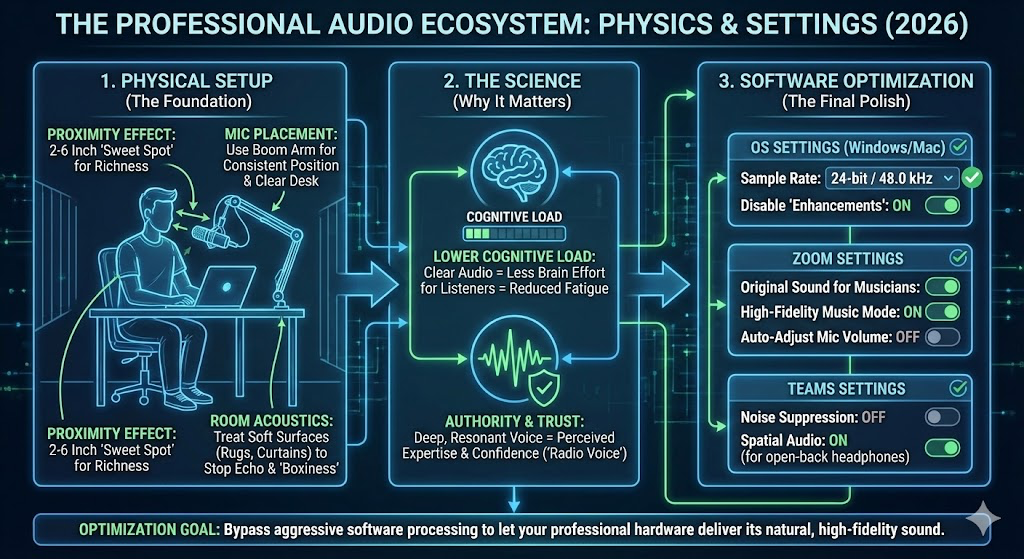
Beyond the Hardware: Optimizing Software for High-Fidelity Audio
Buying professional gear is 70% of the battle. The remaining 30% is ensuring that your software doesn’t “sabotage” your investment. Modern communication apps like Zoom and Microsoft Teams are designed to make $10 earbuds sound “okay” by using aggressive compression and AI noise removal. When you plug in a $400 professional microphone, these same features can actually make you sound worse.
1. The Global Rule: Windows & macOS System Settings
Before touching Zoom or Teams, you must ensure your operating system is talking to your hardware correctly.
- Sample Rate Matching: In 2026, the gold standard is 24-bit / 48.0 kHz. Open your Sound Control Panel (Windows) or Audio MIDI Setup (Mac) and ensure both your input (mic) and output (DAC/Headphones) are set to 48.0 kHz. Mismatched sample rates are the #1 cause of robotic voices or “popping” sounds.
- Disable “Enhancements”: Turn off “Windows Sonic,” “Audio Enhancements,” or any manufacturer-bundled “voice clarity” software. Your professional hardware already does this better; you don’t want two layers of processing fighting each other.
2. Zoom Optimization: The “Original Sound” Standard
Zoom has the most advanced audio engine for professionals, but its “Auto” settings are notoriously aggressive.
- Enable “Original Sound for Musicians”: This is the single most important setting. It bypasses Zoom’s internal noise suppression and echo cancellation. Since you are using a professional microphone and headphones, you don’t need Zoom to “help” you.
- High-Fidelity Music Mode: Once “Original Sound” is enabled, check the box for “High-fidelity music mode.” This increases the audio bitrate to 96kbps (mono) or 192kbps (stereo) and raises the frequency response to 48kHz.
- Turn off “Automatically Adjust Mic Volume”: Professional mics (especially the Shure MV7+) have their own gain control. If Zoom is constantly sliding your volume bar up and down, it creates “pumping” audio that is distracting to listeners.
3. Microsoft Teams: The “Music Mode” Toggle
Teams has historically been more “locked down,” but the 2026 updates have made it a viable Hi-Fi platform.
- High-Fidelity Music Mode: While in a meeting, look for the music note icon or go to
More > Audio Settings. Enabling this allows Teams to transmit at a 32kHz sampling rate. - Noise Suppression -> “Off”: In the
Devicestab of your Teams settings, manually change Noise Suppression from “Auto” to “Off.” Pro microphones like the SM7B are physically designed to ignore background noise; letting Teams’ AI filter it further will only “thin out” your voice and remove that rich authority. - Spatial Audio: If you have high-end open-back headphones (like the Sennheiser HD 560S), enable “Spatial Audio.” This places participants in a virtual 3D space, making it much easier to tell who is talking in a large group and reducing “listening fatigue.”
Real-World Application: The “Professional Presence” Difference
Let’s look at a real-world scenario. You are in a competitive pitch for a new project.
- Competitor A is using a gaming headset. Their voice is thin, they have a slight echo, and they look like they’re 15.
- You are using a Shure MV7+ on a clean boom arm, with a pair of sleek Sennheisers. Your voice is rich, authoritative, and clear.
Who does the client trust with their $100k budget? In my 15 years of remote work, I have found that high-quality audio acts as a force multiplier for your expertise. It removes the “distance” between you and your listener. When you sound like you’re sitting across the table from them, the digital barrier vanishes.
Conclusion: Stop Settling for “Good Enough”
The era of “good enough” audio in the remote office ended years ago. As we move deeper into 2026, the distinction between those who understand the digital medium and those who are just “getting by” will only widen.
Investing in a high-fidelity audio setup is an investment in your personal brand. Whether you start with the “Good” setup or go straight to the “Best,” the goal is the same: clarity, authority, and professional presence.
