
Some links below are affiliate links. If you buy through one, this site earns a commission at no extra cost to you. It never changes a verdict — here is how that works.
Here’s the promise every dock maker sells you: one cable, and your laptop is instantly powered, connected to your monitors, and hooked into your keyboard, mouse, and webcam. Here’s the reality I’ve run into more than once: that one cable works great for a week, then your charging drops out under load, your second monitor flickers, and you’re back to plugging in a backup USB-C cable just in case. The docking station market is growing fast, with the global docking station market on pace to expand at a compound annual growth rate near 11% through the early 2030s [1], and Thunderbolt docks specifically are projected to grow at a double-digit clip through 2032 [2]. But growth in the market doesn’t mean the gear has caught up with the marketing.
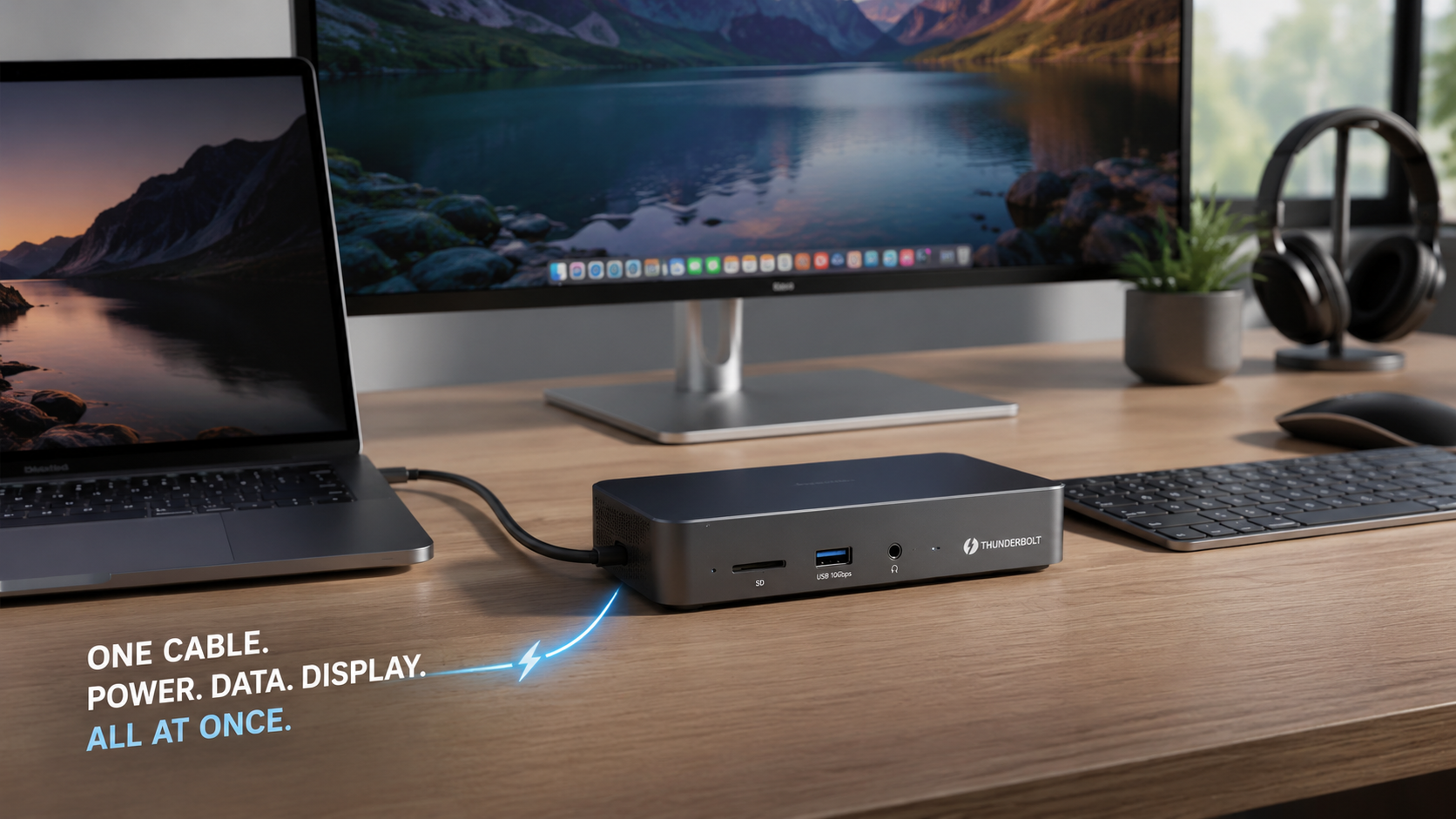
Building a true one-cable workstation with Thunderbolt 4, 140W Power Delivery, and wireless charging takes more care than the spec sheets let on.
Gear Mentioned in This Post
- Thunderbolt DockView on Amazon
Why the “One Cable” Dream Is Harder Than It Sounds
Thunderbolt docking started as a niche accessory for a small slice of power users. It’s since become close to standard infrastructure for anyone running a serious multi-monitor desk [3]. That shift matters, because it means more brands are pushing into the space, and more of them are cutting corners you won’t spot until you’ve lived with the dock for a month.
The core problem is that a single USB-C or Thunderbolt cable has to carry four different jobs at once: video, data, power, and (on some setups) audio. Ask that cable to also charge a 16-inch laptop at full tilt while driving two 4K monitors, and you’re pushing right up against the physical limits of what the standard allows. Most docks handle two of those jobs well. Fewer handle all four without some kind of compromise.
That’s exactly why the docking station market is splitting into more specific categories: product type, port configuration, power delivery capability, device compatibility, and use case are all now treated as separate market segments by industry researchers [4]. In plain terms, a dock built for a video editor’s dual-monitor rig is not the same product as one built for a hybrid worker switching between a work laptop and a personal machine, even if they look identical in a product photo.

Thunderbolt 4 Is the Backbone, Not the Whole Story
Thunderbolt 4 is what makes the single-cable setup possible in the first place. It guarantees minimum bandwidth and video support across certified devices, which is why it’s become the default choice for anyone building a real one-cable desk. But Thunderbolt 4 certification tells you the cable and dock can move data fast. It says nothing about how well the dock manages heat, how stable it stays over months of daily docking and undocking, or whether the power delivery holds steady when your laptop’s fan kicks into high gear.
I’ve found that the gap between “Thunderbolt 4 certified” and “actually reliable at your desk every day” is where most disappointment lives. A dock can pass every certification test in a lab and still drop your external display once a week because of a firmware quirk or a marginal cable. If you’re building a single-cable setup, don’t just check the Thunderbolt 4 badge. Check how the specific dock model performs under sustained daily use, not just in a spec comparison chart.
The USB-C dock market overall is also expanding quickly, with steady growth projected as more laptops ditch traditional ports entirely [5]. That’s good news for selection, but it also means there’s a flood of new dock models entering the market every year, and not all of them are built to the same standard.
 From the shopFriction Is The Enemy$18.45Shop →
140W Power Delivery: The Number That Gets Exaggerated Most
Power Delivery is where marketing hype does the most damage. A dock advertised at 140W doesn’t always deliver 140W to your laptop. Some of that wattage gets consumed by the dock itself to power its own ports, its display outputs, and any connected peripherals. If you’re running two monitors and a handful of USB accessories off the same dock, the power actually reaching your laptop’s battery can be meaningfully lower than the number on the box.
This matters more than it sounds like it should. A 16-inch laptop under heavy load, think video export or a demanding compile job, can draw more power than it’s receiving from a dock that’s spreading 140W thin across displays and peripherals. The result is a laptop that slowly drains its battery even while it’s “charging.” You won’t notice this in a quick test. You’ll notice it three hours into a workday when your battery percentage has quietly dropped by 15%.
Here’s what to actually check before you commit to a 140W dock:
-
Whether the 140W figure is the dock’s total power budget or the power guaranteed to reach your laptop specifically
-
How power delivery changes when multiple monitors are connected at once
-
Whether the dock throttles charging when ambient temperature rises
-
What happens to power delivery if you unplug and replug a peripheral mid-session
None of these questions get answered on a product page. They get answered by living with the dock.
Where Wireless Charging Mats Fit In (and Where They Don’t)
Desk-mat wireless charging has become the finishing touch on the “clean desk” setup, and it’s easy to see why. You drop your phone on the mat, it charges, no extra cable in sight. The appeal is real. The execution varies a lot more than people expect.
The biggest issue isn’t the mat itself, it’s what happens when you try to run a wireless charging mat off the same power budget as your dock and your laptop. If your desk setup pulls power from a single wall outlet through a hub that’s already stretched thin delivering 140W to your laptop, adding a wireless charging mat to that same circuit can create the exact kind of power contention that causes intermittent charging speeds or dropped connections. The fix is usually simple: give your wireless charging mat its own power source, or make sure your hub’s power budget explicitly accounts for it, rather than assuming there’s headroom that isn’t really there.
Is a wireless charging mat “worth it” in a true single-cable setup? I’d argue yes, but only if you think of it as a separate accessory that happens to live on your desk, not as another device competing for the same limited wattage as your laptop and monitors.
What Actually Breaks First in a Multi-Device Setup
If you’re a hybrid worker switching between an employer laptop and a personal machine, the docking conversation gets more complicated. Multi-host KVM docking, where one dock and one set of monitors can switch between two different computers, sounds like the ultimate single-cable solution. In practice, it’s the setup most likely to expose weaknesses in cheaper hardware.
The failure points I’ve seen most often aren’t dramatic. They’re small annoyances that compound. A monitor that needs to be manually re-detected after switching hosts. A keyboard and mouse combo that lags for a few seconds during the handoff. A webcam that works on host one but needs to be unplugged and replugged to work on host two. None of these show up in a five-minute demo video. All of them show up during a real workweek.
Docking stations are increasingly segmented by exactly this kind of use case, with device compatibility and customer type now tracked as distinct factors in how the market is analyzed [4]. That’s a sign the industry itself recognizes that a dock built for a single-device power user and a dock built for a two-host hybrid worker are genuinely different products, even when they’re priced similarly.
Building Your Setup Without the Compromises
A true single-cable desk isn’t about buying the dock with the biggest wattage number or the most ports. It’s about matching the dock’s actual, tested behavior to your specific combination of laptop, monitors, and daily habits.
Start with your heaviest real-world load, not your average one. If you occasionally run a second 4K monitor plus a wireless charging mat plus a USB microphone, test the dock under that exact combination before you trust it as your daily setup. The docking station market’s growth into specialized categories like power delivery capability and form factor [4] tells you there’s no single “best” dock, only the best dock for your specific load.
-
Confirm Thunderbolt 4 certification, then verify real-world stability over at least a week of daily use, not a single test session
-
Test power delivery under your heaviest realistic load, including all monitors and peripherals connected at once
-
Give wireless charging mats independent power where possible, rather than sharing a tight budget with your dock
-
If you’re switching between two hosts, test the KVM switch specifically for display re-detection and peripheral handoff speed
Frequently Asked Questions
Does a Thunderbolt 4 dock guarantee 140W of charging to my laptop?
No. The 140W figure is often the dock’s total power budget, shared across displays and peripherals. The wattage actually reaching your laptop can be lower once other devices are drawing from the same dock.
Can I run a wireless charging mat and a Thunderbolt dock from the same power source?
You can, but it’s risky if your dock is already near its power ceiling. Giving the wireless charging mat its own outlet avoids the intermittent charging issues that come from shared, stretched power budgets.
What’s the biggest weakness in multi-host KVM docks?
The handoff between hosts. Watch for slow monitor re-detection, keyboard and mouse lag during switching, and webcams that need to be manually reconnected when you move between your work and personal machine.
Is the docking station market actually growing, or is this a niche category?
It’s genuinely growing. The global docking station market is expanding at a strong pace [1], and Thunderbolt-specific docks are forecast for double-digit growth through 2032 [2], driven largely by demand for exactly this kind of single-cable setup.
Your Next Step
If you’re planning a single-cable desk setup, resist the urge to buy based on the highest wattage number or the longest port list. Write down your actual daily load first, monitors, peripherals, charging needs, and whether you’re switching between hosts, then test any dock against that specific list before it earns a permanent spot on your desk.
Sources
-
Global Docking Station Market Size, Share and Trends Analysis Report (databridgemarketresearch.com)
-
Thunderbolt 3 & Thunderbolt 4 Docks Market – Global Forecast 2026-2032 (researchandmarkets.com)
-
The Evolution of Thunderbolt Docking Stations: From Niche to Infrastructure (plugable.com)
-
USB-C Docks and Dock Stations Market Size, Share & Growth Report … (snsinsider.com)
Researched from 22 vetted sources · average source authority DR 76