
Some links below are affiliate links. If you buy through one, this site earns a commission at no extra cost to you. It never changes a verdict — here is how that works.
Gear Mentioned in This Post
- MacBook ProView on Amazon
The short version
On a Mac, resolution is the wrong number to shop by. Pixel density is the right one. Apple draws the macOS interface to look correct at about 110 pixels per inch on a standard display and about 220 on a Retina display.[1] A monitor near either number looks sharp at a sensible size. A monitor in between forces macOS to scale, and scaling costs sharpness.
A 27-inch 4K monitor sits at 163 ppi, almost exactly in the middle.[3] That is why the most popular “good monitor” in every store can look a little soft next to a MacBook screen. A 27-inch 5K panel lands at 218 ppi and matches the laptop. Those used to start at Apple’s price. They now start at $799.[5]
If you mostly watch video, game, or use Windows on the same screen, most of this matters less. If you read and write text on a Mac all day, it matters a lot.
Why macOS cares about pixels per inch
macOS draws every window at 1x or 2x. At 1x, one point in the interface is one pixel. At 2x, one point is four pixels, which is what Apple calls Retina. There is no native 1.5x.[3]
So when a display’s density does not suit 1x or 2x, you get two choices. Run it at 2x and everything is too big. Or pick a “scaled” resolution, where macOS draws the picture at a larger size and shrinks it to fit the panel. Marc Edwards at Bjango, whose two articles on this are the standard reference, lists the side effects of scaled modes: blur, shimmer when scrolling, moiré in fine patterns, extra GPU work and shorter battery life on a laptop.[1][3]
Apple’s own desktop displays are built around 218 ppi. Its laptops run a little higher, at 227 ppi on the MacBook Air and 254 ppi on the 16-inch MacBook Pro.[2]
Pixel density by screen size
Pixel density is the diagonal pixel count divided by the diagonal size in inches. Here are the common desktop sizes.
| Size and resolution | Pixel density | Zone on a Mac |
|---|---|---|
| 27-inch 1440p (2560 x 1440) | 109 ppi | 1x target. Right size, visible pixels. |
| 34-inch ultrawide (3440 x 1440) | 110 ppi | 1x target |
| 38-inch ultrawide (3840 x 1600) | 111 ppi | 1x target |
| 32-inch 4K (3840 x 2160) | 138 ppi | In between |
| 40-inch 5K2K ultrawide (5120 x 2160) | About 140 ppi | In between |
| 27-inch 4K (3840 x 2160) | 163 ppi | In between |
| 24-inch 4K (3840 x 2160) | 184 ppi | Close to 2x. Slightly large at 2x. |
| 27-inch 5K (5120 x 2880) | 218 ppi | 2x target |
| 32-inch 6K (6016 x 3384) | About 216 ppi | 2x target |
The 24, 27 and 32-inch 4K figures match BenQ’s published math.[4] The others use the same formula.
 From the shopFriction Is The Enemy$18.45Shop →
What the in-between zone costs you
Nothing breaks. An in-between monitor works, and plenty of people use one happily. What you notice depends on what you do.
- Text. This is where it shows. Small text on a scaled display is slightly softer than the same text on the MacBook next to it.
- Size. At true 2x, a 27-inch 4K gives you the working space of a 1080p screen, which feels cramped at 27 inches. That is why most people run it scaled.
- Pixel-exact work. If you design interfaces or icons, scaling means what you see is not a one-to-one view of your pixels. This is the group Bjango wrote for.[1]
- Video and photos. You will struggle to see a difference.
Bjango also makes the fair point that there are good reasons to choose scaling or an in-between display, such as wanting more room on screen than 2x gives you.[2] The goal here is to know what you are trading, not to rule those monitors out.
The ultrawide question
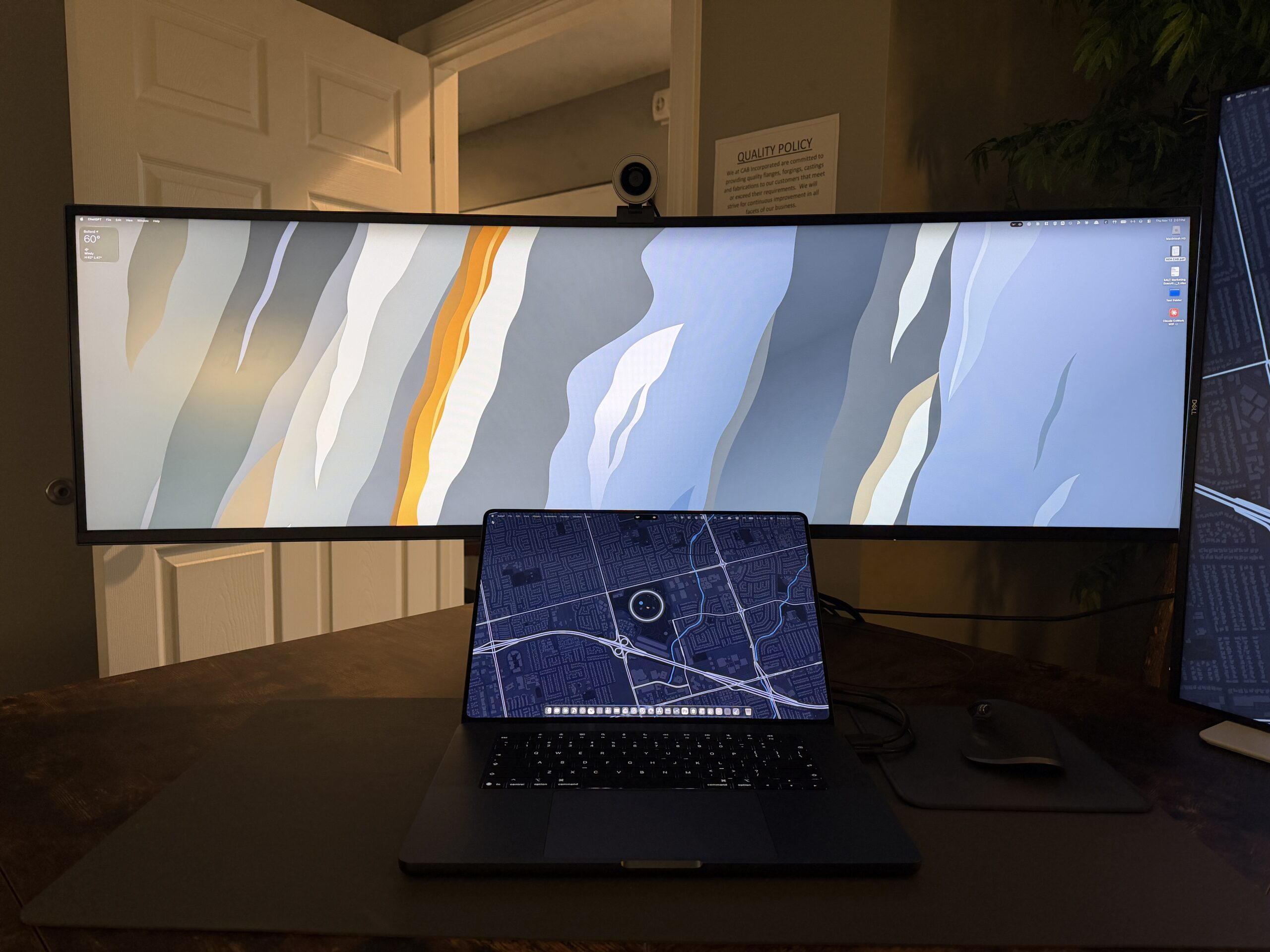
Ultrawides are where this gets personal for me, because my main monitor is one. I use the Dell U4025QW, a 40-inch 5120 x 2160 panel, and my full U4025QW review covers it in detail. At about 140 ppi it is in the in-between zone, the same as a 32-inch 4K.
There is no ultrawide at 218 ppi you can buy today. So the choice is between a 110 ppi ultrawide that runs at clean 1x with visible pixels, and a 5K2K ultrawide that has much finer pixels and runs scaled. I chose the second.
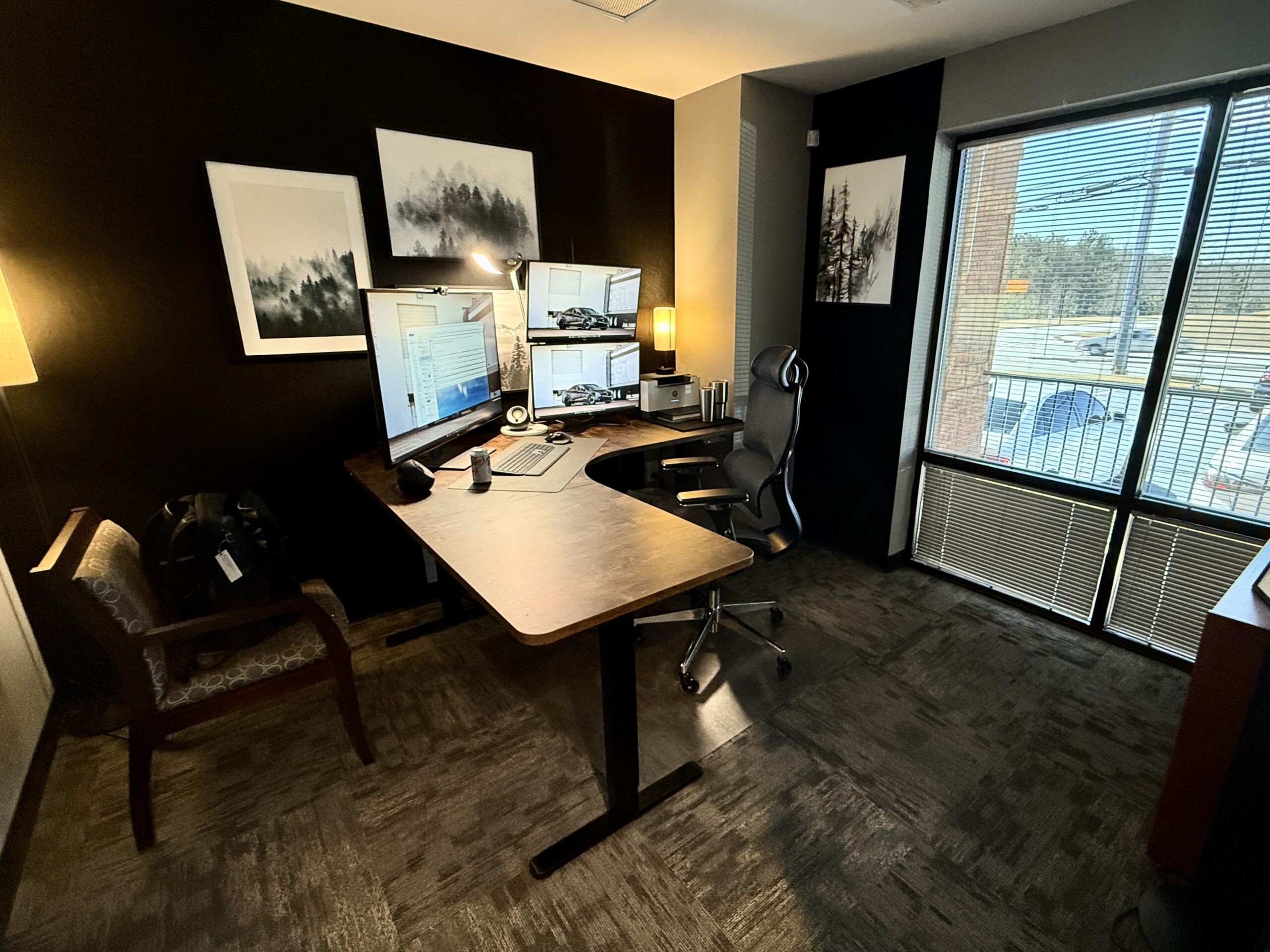
I run all of my monitors on the natural, native resolution on my MacBook Pro. Whether it is my Dell Ultrawide, the 27″ displays or my 48″ LG OLED, they are all setup the same. You can definitely see the pixel density differences across all of them. The 140ppi and the 48″ actually look about the same due to the size and pixel density. 5K 27″ displays closer match my MacBook Pro’s screen. It is really down to whatever works best for your application and the work you are doing at the time.
Monitors to look at
| Monitor | Panel | Density | Price seen | Where to buy |
|---|---|---|---|---|
| ASUS ProArt PA27JCV | 27-inch 5K, 60Hz | 218 ppi | $799[5] | Amazon |
| BenQ MA270S | 27-inch 5K, Thunderbolt 4 | 218 ppi | $999[7] | Amazon |
| BenQ PD2730S | 27-inch 5K, Thunderbolt 4 | 218 ppi | $1,099 to $1,200[6][7] | Amazon |
| Apple Studio Display | 27-inch 5K | 218 ppi | From $1,599[8] | Amazon |
| Dell U4025QW (in between, ultrawide) | 40-inch 5K2K, 120Hz, Thunderbolt 4 | About 140 ppi | Check current price | Amazon |
MacRumors tested the ASUS and found it sharp, color accurate and very close to the Studio Display, with a plainer design.[5] The BenQ PD2730S costs more and adds Thunderbolt 4.[6] Apple refreshed the Studio Display in 2026, so confirm its current price and specs before you compare. Prices on all of these move.
Checks before you order
- Connection. A USB-C or Thunderbolt monitor that charges your laptop saves a dock. Check the wattage against your MacBook’s charger.
- Refresh rate. Most 5K panels are 60Hz. If you want 120Hz you are back to 4K or an ultrawide, and back in the in-between zone.
- How many displays your Mac drives. This depends on the chip. Check Apple’s spec page for your exact model before you buy two.
- Your dock. A 5K display uses a lot of bandwidth. My single-cable desk setup guide covers what a dock can and cannot pass through.
Which one for which desk
| You are | Look at |
|---|---|
| Writing, coding or reading on a Mac all day | 27-inch 5K |
| Designing interfaces or doing pixel-exact work | 27-inch 5K or 32-inch 6K |
| Wanting one wide screen in place of two | 40-inch 5K2K, and accept scaling |
| On a tight budget | 27-inch 1440p at 1x, or a 27-inch 4K with scaling |
| Sharing the screen with a gaming PC | 4K at high refresh. Density matters less on Windows. |
How many displays your Mac can run
The monitor is half the question. The Mac is the other half. The chip sets how many external displays you can drive, and a dock cannot raise that limit.[10]
| Mac | External displays |
|---|---|
| MacBook with a base M1 or M2 chip | One[10] |
| MacBook Air with M4 or M5 | Two, each up to 6K at 60Hz or 4K at 144Hz[9] |
| MacBook Pro with M4 Pro or M4 Max, and earlier Pro and Max chips | Up to two per Thunderbolt port.[11] Max chips reach four in total across ports.[12] |
| MacBook Pro with M5 Pro | Three over one Thunderbolt 5 cable[11] |
| MacBook Pro with M5 Max | Four over one Thunderbolt 5 cable[11] |
Each of these depends on the resolution and refresh rate of the displays, so check Apple’s support page for your exact model before you buy a second screen.[9][12] On the current MacBook Air, closing the lid does not add to the count.[9]
Work out any monitor’s pixel density
You can check any monitor in a minute. Square the horizontal pixel count, square the vertical pixel count, add them, take the square root, and divide by the diagonal size in inches.
For a 27-inch 5K panel: 5120 squared plus 2880 squared is 34,508,800. The square root is 5,874. Divide by 27 and you get 218 ppi. If the answer lands near 110 or near 220, the monitor suits macOS without scaling. If it lands between about 130 and 190, plan on a scaled resolution.
FAQ
How do I calculate a monitor’s pixel density?
Take the square root of the horizontal pixels squared plus the vertical pixels squared, then divide by the diagonal in inches. A 27-inch 5120 x 2880 display works out to 218 ppi.
How many external monitors can a MacBook Air run?
Two on the M4 and M5 models, each up to 6K at 60Hz or 4K at 144Hz.[9] Older base M1 and M2 models run one.[10]
Is a 27-inch 4K monitor bad for a Mac?
No. It works and it is good value. It is not Retina, because 163 ppi sits between the two densities macOS is drawn for, so you will run it scaled and text will be slightly softer than on a 5K panel.
What pixel density is Retina on a desktop Mac?
About 218 to 220 ppi.[1][2] A 27-inch 5K and a 32-inch 6K both land there.
Is 5K worth it over 4K at 27 inches?
For text work on a Mac, yes, now that 5K starts at $799.[5] For video and games, 4K is fine.
Does scaling slow down my Mac?
It adds GPU work and can shorten battery life on a laptop.[3] On a recent Mac plugged in at a desk, most people never notice the performance side.
Does any of this apply to Windows?
Much less. Windows handles fractional scaling differently, so a 27-inch 4K at 150 percent is a normal setup there.
Bottom line
Work out the pixel density before you look at anything else. For a Mac used for text, a 27-inch 5K is the straightforward answer, and the ASUS ProArt PA27JCV is the cheapest way in. If you want an ultrawide, a 5K2K panel is the sharpest option available, and you accept scaling to get the width. And if your budget stops at a 27-inch 4K, buy it knowing what it is. It will still be a big step up from a laptop screen alone.
Sources
- Marc Edwards, “Mac external displays for designers and developers,” Bjango
- Marc Edwards, “Mac external displays for designers and developers, part 2,” Bjango
- Best monitor for Mac guide, ComputingForGeeks (summarizes Bjango’s scaling side effects and Apple’s scaled-resolution note)
- “5K monitor for Mac” pixel density explainer, BenQ (monitor manufacturer)
- “Testing the New ASUS ProArt 5K Display,” MacRumors
- BenQ PD2730S review, MacRumors
- “BenQ MA270S 5K Mac monitor: Studio Display alternative at $999,” RedShark News
- “Best 5K monitor for MacBook: a definitive buyer’s guide,” 9to5Mac
- “How many displays can be connected to MacBook Air,” Apple Support
- “Understanding External Display Support on Apple M1, M2, M3, M4 and M5 Chips,” Plugable (dock manufacturer)
- “M5 Pro and Max MacBooks finally break Apple’s multi-monitor shackles,” Macworld
- “How many displays can be connected to MacBook Pro,” Apple Support