
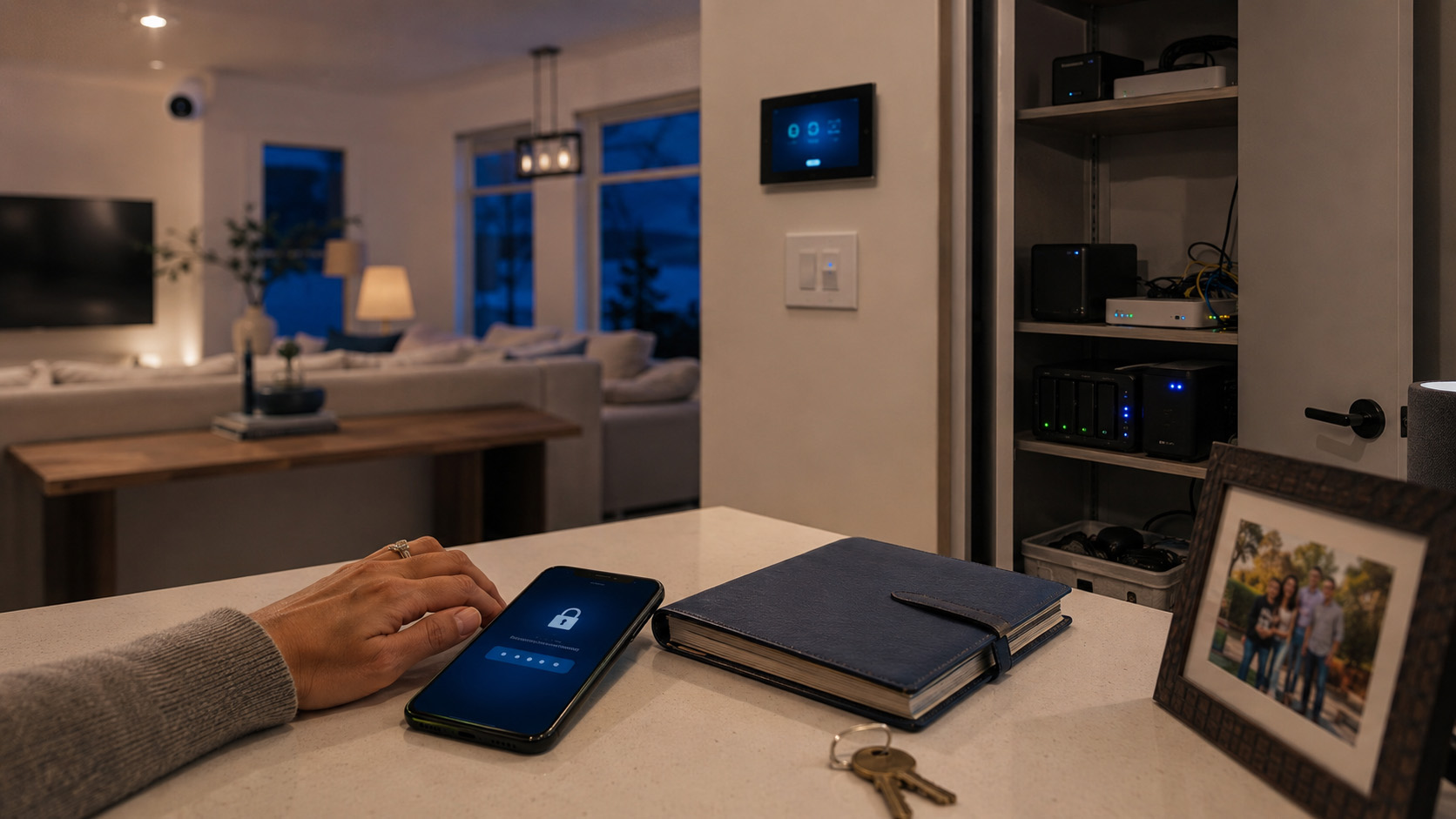
I’ve got seven smart home hubs running in my house right now, and if something happened to me tomorrow, my wife would have no idea how to get into a single one of them. Not the Home Assistant instance running on a mini PC in the closet. Not the SmartThings account tied to an email she doesn’t have the password for. Not the NAS backing up four years of automation configs. I test this stuff for a living, and even I haven’t solved this problem for my own house. That should tell you something about how deep the gap actually goes.
The Digital Legacy Gap Nobody’s Talking About
Most of the conversation around digital estate planning focuses on photos, email, and social media. Apple and Google have both built mature tools for exactly that. But almost none of it touches the thing tech enthusiasts actually live in every day: the local admin accounts, self-hosted servers, and hub logins that run their houses.
Here’s the honest take. More than half of Americans don’t even have a basic estate plan [1]. Among people who do think about their digital assets, only 40% have done any kind of digital legacy planning, whether that’s a password list or something more formal like a digital power of attorney [2]. And in the UK, 85.6% of adults haven’t included digital access instructions alongside their Will, even though 57.5% hold financial assets digitally.
That’s a massive mismatch between what people own online and what they’ve actually prepared for. Now stack a smart home hub on top of that. If your family can’t even find your email password, they definitely aren’t getting into Home Assistant.
Why Apple and Google’s Tools Don’t Cover Your Hub
I want to be fair here: Apple Legacy Contact and Google Inactive Account Manager are genuinely well-built. Apple lets you designate up to five legacy contacts, and once someone provides an Access Key and a death certificate, they can get into photos, messages, notes, and files [3][4]. Google’s Inactive Account Manager supports up to 10 trusted contacts with inactivity windows you can set at 3, 6, 12, or 18 months, though download links expire after about three months.
Both are worth setting up. Neither one gets you anywhere near your smart home.
Apple says it directly: Legacy Contact does not include iCloud Keychain passwords, purchased media, or passkeys [4]. That means the passkey you use to log into your router admin panel, or the Keychain entry storing your SmartThings password, is locked out by design, not by accident. Google’s tool has the same structural blind spot. It was built for personal data and account recovery, not for handing off root access to a self-hosted server.
So even if you’ve done everything “right” on the Apple and Google side, your smart home hub is still an orphan. There’s no platform-level solution for what happens to Home Assistant, SmartThings, or a NAS box when the admin disappears, and there isn’t one on the horizon either [5].
 From the shopIt Worked Before the UPDATE$18.45Shop →
Password Managers Get You Closer, But Not All the Way
If you’re serious about closing this gap, a password manager with real emergency access is your best starting point. But adoption is still low. As of the most recent data, only about 36% of U.S. adults use a password manager at all, up slightly from 34% the year before [6]. Other estimates put usage under 35% [6]. Either way, most people, including plenty of smart home enthusiasts, are still keeping credentials in a notes app or a sticky note by the router.
Among the minority who do use one, almost nobody configures emergency access. It sits there as an unused feature.
Bitwarden actually does this well. Its Emergency Access feature lets you set a waiting period anywhere from 1 to 90 days, and practitioners who work in this space tend to recommend around seven days as the sweet spot, long enough to prevent someone from grabbing your vault the moment you go quiet, short enough that your family isn’t locked out for months during a real emergency [6]. One digital estate practitioner put it plainly: pick a waiting period you’d actually notice, and somewhere around seven days works for most people.
1Password is a different story. It has no native timed emergency access at any subscription tier. Its “Emergency Kit” is a printed PDF you hand to someone physically, a manual workaround, not an automated feature. I’ve tested both, and if emergency access matters to you, Bitwarden’s approach is simply more built out.
There’s a documented workaround for 1Password users, though, and it’s clever even if it’s a bit of a hack. One practitioner printed the Emergency Kit, deliberately left the last four characters of the master password blank, and shared those characters separately, either verbally or through a second physical location like a safe. A partially redacted version of the kit went into a shared drive folder as a “handover vault,” with a secure link emailed to family. It’s not elegant, but it works, and it’s the kind of practical fix you won’t find in official documentation.
What This Looks Like for a Real Smart Home Setup
Here’s where it gets specific to the readers of this site. A password manager solves the credential problem. It does nothing to solve the context problem. Handing someone your Home Assistant admin password doesn’t tell them what that automation does, why your garage door is wired to a Zigbee relay, or which integration is about to break if nobody renews an API key.
One digital estate practitioner nailed this distinction: write down what the credentials are for and what you want done with them. That’s the part password managers intentionally leave out.
For smart home setups specifically, that means documenting:
- Which hub or hubs run your system, and where the physical hardware lives
- Admin login credentials for each hub, router, and NAS device
- What each major automation actually does, in plain language, not YAML
- Subscription services tied to the system, like cloud backup or remote access add-ons
- A single point of contact who understands enough to either maintain it or safely shut it down
No single existing tool chains all of this together automatically. A realistic setup involves layering a password manager with emergency access on top of Apple or Google’s legacy tools, then adding a manual document for context. One composite family scenario I came across in researching this piece described exactly that: a Bitwarden Premium vault for credentials, Apple Legacy Contact for photos and personal files, and a spouse who had to trigger both systems separately after a death. It’s not one tool. It’s three, working together, and that’s the honest reality right now.
The Warning Nobody Gives You
Before you rush to configure Emergency Access on every account you own, one commentator raised a fair caution: giving someone timed emergency access effectively hands over your entire digital life without a court order or a lawyer involved. That’s not a reason to skip it. It’s a reason to be deliberate about who you choose and how much you disclose up front.
I’d add my own two cents here: don’t just grant access. Have the conversation. Tell your trusted contact what they’re actually getting into. A folder full of passwords with no explanation is almost as bad as no plan at all.
Why This Matters More As Smart Homes Get More Complex
The digital legacy market itself is expanding fast, projected to grow from $25 billion in 2025 to $54.3 billion by 2031, covering roughly 410 million managed legacy profiles [7]. That tells you institutions are racing to build tools for this problem. But the growth is happening on the corporate and legal side faster than it’s happening in actual households [7]. Trust usage has climbed 7x over the past decade too, showing families are increasingly formalizing asset transfer [8], yet none of that formal planning tends to touch a Home Assistant install or a self-hosted Plex server.
The more your house depends on interconnected hubs and automations, the bigger this blind spot gets. A single smart lock is annoying to lose access to. A whole ecosystem of hubs, sensors, and routines that nobody else understands is a real problem for whoever’s left to deal with it.
A Practical Starting Point
If you take one thing from this, let it be this: don’t wait for a platform to solve the smart home succession problem, because none of them are close to doing it. Apple and Google have built solid tools for personal data. Nobody’s built the equivalent for your hub.
Start small. Turn on Bitwarden’s Emergency Access with a seven-day waiting period if that’s your manager of choice, or build the manual redacted-PDF workaround if you’re on 1Password. Set up Apple Legacy Contact or Google’s Inactive Account Manager for your personal accounts. Then write the one document nobody else is going to write for you: what your smart home actually does, and what you want done with it if you’re not the one maintaining it anymore.
It’s not a fun weekend project. But it’s a genuinely worthwhile one, and it’s the kind of thing you’ll be glad you did long before you ever need it.
Frequently Asked Questions
Does Apple Legacy Contact give my family access to my smart home hub?
No. Legacy Contact covers photos, messages, notes, and files, but it explicitly excludes iCloud Keychain passwords and passkeys [4], which means any hub credentials stored there stay locked.
Is Bitwarden or 1Password better for digital legacy planning?
Bitwarden has a real automated Emergency Access feature with configurable waiting periods from 1 to 90 days [6]. 1Password has no native equivalent, only a printed Emergency Kit that requires manual handoff.
How long should I set my emergency access waiting period?
Most practitioners recommend around seven days. It’s long enough to avoid accidental early access but short enough that your family isn’t stuck waiting during an actual emergency.
What should I document beyond just passwords?
Write down what each automation does, where hardware physically lives, and who should be contacted to maintain or shut down the system. Credentials without context leave your family locked out in a different way.
If you’ve never sat down and mapped out what happens to your hub setup, start this week. Open your password manager, check whether emergency access is even turned on, and write one page explaining your system in plain language. Future you, or more accurately, whoever inherits your house, will thank you.
Sources
- More than Half of Americans Have No Estate Plan — New LegalZoom Data Shows What That’s Costing Families (wallstreet-online.de)
- U of M researchers studying ‘digital legacy planning’ before death (thespec.com)
- How to set up an Apple ‘Legacy Contact’ | Ensuring your … (note.com)
- Apple Legacy Contact: iCloud Access After a Death (memorials.com)
- What happens to your Home Assistant smart home when you die? That’s up to you (howtogeek.com)
- Family Password Manager | Bitwarden (bitwarden.com)
- Global Digital Legacy Market Share, Companies & Trends … (kenresearch.com)
- Trusts Up 7x in a Decade According to LegalShield Intelligence (legalshield.com)
Researched from 18 sources.
Independently verified
The statistics above were independently corroborated against these sources: