
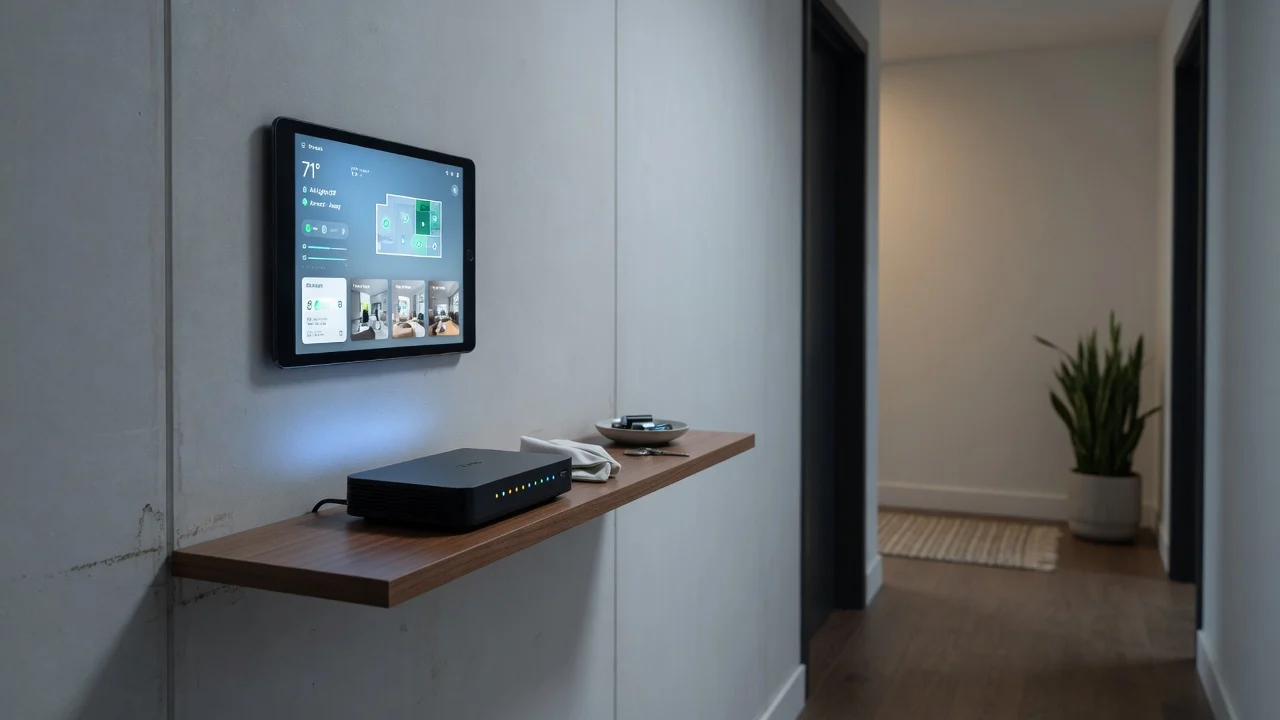
I’ve spent 18 months rotating through smart home hubs in my house, Home Assistant, SmartThings, a couple of self-hosted setups running on a NAS in my office closet. And somewhere around month ten, doing a routine backup, I had an uncomfortable thought: if something happened to me tomorrow, my wife would have no idea how to turn the porch lights off, let alone recover the automation scripts I’ve been tweaking for years. She doesn’t know the admin password. She doesn’t know which app controls what. She’d probably just start unplugging things.

That gap, between how deeply we build these systems and how little anyone else can access them, is the subject of this article. It’s called digital legacy planning, and if you’re a tech enthusiast, you almost certainly haven’t done it.
The Gap Nobody’s Talking About
Here’s the uncomfortable math. More than half of Americans have no estate plan at all, full stop, not even a basic will [1]. Zoom into digital assets specifically and it gets worse. In the UK, 57.5% of adults hold financial assets digitally, but 85.6% have never included digital access instructions alongside their will. Canadian researchers at the University of Manitoba found only 40% of respondents had done any kind of digital legacy planning, even something as simple as a password list [2].
Password managers are supposed to be the fix here, and adoption is climbing. About 36% of U.S. adults, roughly 94 million people, now use one, up from 34% the year before [3]. That’s real progress. But using a password manager and configuring it for what happens after you’re gone are two completely different things. Most people who’ve done the first have never touched the second.
If you’re the kind of person who runs Home Assistant, self-hosts a NAS, or manages three different smart home ecosystems because Matter still hasn’t fully consolidated things, you’re carrying more of this risk than the average person. You’re the admin. You’re the only admin. And nobody has built a clean solution for that yet.
What Apple and Google Actually Cover (And What They Don’t)
Apple’s Legacy Contact feature is mature and well-documented. You can designate up to five people who can request access to your account after you die [4]. The catch is that access requires both a physical Access Key and a death certificate [5], and even then, the feature explicitly excludes iCloud Keychain passwords, saved payment info, and passkeys [5]. It’s built to hand over photos, messages, notes, and files, not your credential vault [5].
Google’s Inactive Account Manager works differently. You can name up to 10 trusted contacts and set an inactivity window of 3, 6, 12, or 18 months before it triggers. Real organizations are already using this as legitimate infrastructure. Patient Pathways, a healthcare navigation firm in British Columbia, actively instructs families managing dementia and frailty cases to configure it as part of formal planning. That’s not a hobbyist workaround, that’s a professional practice recommending a consumer feature because nothing better exists.
Here’s the honest take: both of these tools are good at what they do and completely silent on what smart home owners actually need. Neither one touches your router’s admin panel, your Home Assistant instance, or the local login for your NAS. That’s not a small oversight. It’s a structural gap, and it’s exactly where enthusiasts get burned.
 From the shopIt Worked Before the UPDATE$18.45Shop →
Where Password Managers Actually Help
This is where a proper password manager earns its keep, assuming you set it up right. Bitwarden’s Emergency Access feature lets you name a trusted contact who can request access to your vault after a waiting period you set yourself, anywhere from 1 to 90 days [6]. Practitioners who work in this space recommend landing around seven days, long enough that you’d notice and cancel a request if you’re just on vacation, short enough that your family isn’t stuck waiting a month during a crisis.
The catch is your trusted contact needs their own Bitwarden account for this to work at all [6][7]. It’s not something you can hand to a spouse who’s never touched a password manager and expect it to work smoothly.
1Password takes a different approach, and it’s worth being blunt about the difference: there’s no automated emergency access at any subscription tier. Instead, you get an Emergency Kit, a printed PDF you’re meant to physically hand to someone or lock in a safe. It’s a manual workaround, not a real feature. One documented approach from a 1Password user involved printing the kit, deliberately leaving the last four characters of the master password blank, sharing those characters separately by voice or in a physical safe, and uploading a partially redacted version to a shared drive as a family handover vault [8]. It works, but it takes real effort to set up, and most people never will.
The Smart Home Admin Problem, Specifically
Here’s the piece that genuinely doesn’t exist anywhere yet. I looked. There’s no platform-level answer to what happens to a Home Assistant instance, a SmartThings account, or a self-hosted server when the person who administers it is gone. One recent industry piece on Home Assistant succession put it plainly: what happens to your smart home when you die is entirely up to you, because the platform itself offers nothing [9]. No inheritance flow, no legacy contact equivalent, nothing.
Think about what that actually means in practice. Your spouse doesn’t know the local admin password for your router. Your kids don’t know which app controls the smart locks, or that the locks even have a backup manual key hidden somewhere. If you’re running Home Assistant on a Raspberry Pi tucked behind the TV, nobody else in the house even knows it exists, let alone how to log into it.
A composite planning scenario laid out by one digital estate guide illustrates why this requires chaining multiple tools together. A tech-savvy parent sets up Bitwarden Premium alongside Apple and Google’s legacy tools. After death, the spouse triggers Bitwarden’s Emergency Access to retrieve stored credentials, including router and smart home logins if they were actually saved there, while separately using Apple’s Legacy Contact to pull photos and backups. No single tool does the whole job. You have to build the system yourself.
A Practical Inventory: What to Actually Document
I’m not going to pretend there’s a slick app that solves this. There isn’t. What actually works is boring: a written inventory, stored somewhere secure, that someone else can find and understand. Based on what’s worked in my own testing and what shows up consistently in the guidance out there, here’s what belongs on that list:
- Router and network admin credentials, including the actual IP address of the login page, not just “it’s on a sticker somewhere”
- Smart home hub logins (Home Assistant, SmartThings, or whatever you’re running) and where the backup configuration files live
- NAS or self-hosted server admin access, plus instructions for physically locating the hardware
- Domain registrar and DNS provider logins, if you host anything yourself
- A plain-language note explaining what each system actually does, since a login is useless if nobody knows what it unlocks
That last point matters more than people think. One practitioner writing about Bitwarden’s Emergency Access made a sharp observation: the tool hands over credentials, but it deliberately doesn’t solve the context problem, what those credentials are for and what you actually want done with them. You have to write that part yourself. Nobody’s building it for you.
The Legal and Ethical Wrinkle Worth Knowing
One more thing worth saying plainly: handing someone your entire digital life through an emergency access feature isn’t the same as a legal transfer of authority. A digital estate commentator has warned that these tools effectively hand your accounts to a trusted contact without any court order or lawyer involved. That’s not necessarily a problem, but it means you should be deliberate about who gets that access and how much of it they get.
It’s also worth remembering that a will alone doesn’t grant technical access. Even with clear legal documentation naming an heir, there’s no automatic right that lets someone log into your accounts. The legal side and the technical side are separate problems, and you need to solve both.
High-value digital asset holders show the sharpest version of this risk. Among crypto holders, 72% report having experienced or witnessed a close call where access was nearly lost for good, and 52% have no inheritance plan in place at all, with an estimated $5.4 billion in crypto currently at risk of permanent loss due to failed succession planning. Your smart home setup probably isn’t worth billions, but the underlying failure mode, nobody else can get in, is exactly the same.
Frequently Asked Questions
Does Apple’s Legacy Contact give my family access to my saved Wi-Fi passwords?
No. Legacy Contact explicitly excludes iCloud Keychain, which is where those passwords live, along with payment info and passkeys [5]. It’s built for photos, messages, and files, not credentials.
What’s the ideal waiting period for Bitwarden’s Emergency Access?
You can set anywhere from 1 to 90 days, and most practitioners land around seven days as the practical sweet spot [6], long enough to avoid false triggers, short enough that your family isn’t stuck waiting during an actual emergency.
Can I set up emergency access on 1Password like I can with Bitwarden?
Not automatically. 1Password has no native timed emergency access at any tier. Its Emergency Kit is a printed PDF you hand to someone physically, a manual workaround rather than an automated system.
What happens to my Home Assistant setup if I don’t plan for it?
Nothing happens automatically, because there’s no platform-level tool that addresses it at all [9]. Your family would need your admin credentials and enough context to know what the system actually controls, and without documentation, that knowledge dies with you.
Start With One Weekend
You don’t need to solve all of this today. Pick one weekend, sit down with whoever needs to inherit access to your digital life, and build the inventory list above. Set up Bitwarden’s Emergency Access if you’re already using it, or start the manual 1Password workaround if that’s your tool. Then write the plain-language notes explaining what everything actually does. It’s not exciting work, but it’s the kind of digital legacy planning that actually protects the people you’d want protected, and it’s worth doing before you need it, not after.
Sources
- More than Half of Americans Have No Estate Plan — New LegalZoom Data Shows What That’s Costing Families (wallstreet-online.de)
- U of M researchers studying ‘digital legacy planning’ before death (thespec.com)
- Best Password Managers for Businesses in 2026 (security.org)
- How to set up an Apple ‘Legacy Contact’ | Ensuring your … (note.com)
- Apple Legacy Contact: iCloud Access After a Death (memorials.com)
- How to Set Up Bitwarden Authenticator: 12 Steps, 60 Min [2026] (tech-insider.org)
- Set Up Bitwarden Password Manager: 13 Steps, 75 Min [2026] (tech-insider.org)
- 1Passwordとデッドマンズ・スイッチ——死後に「デジタル金庫」 … (note.com)
- What happens to your Home Assistant smart home when you die? That’s up to you (howtogeek.com)
Researched from 19 sources.