
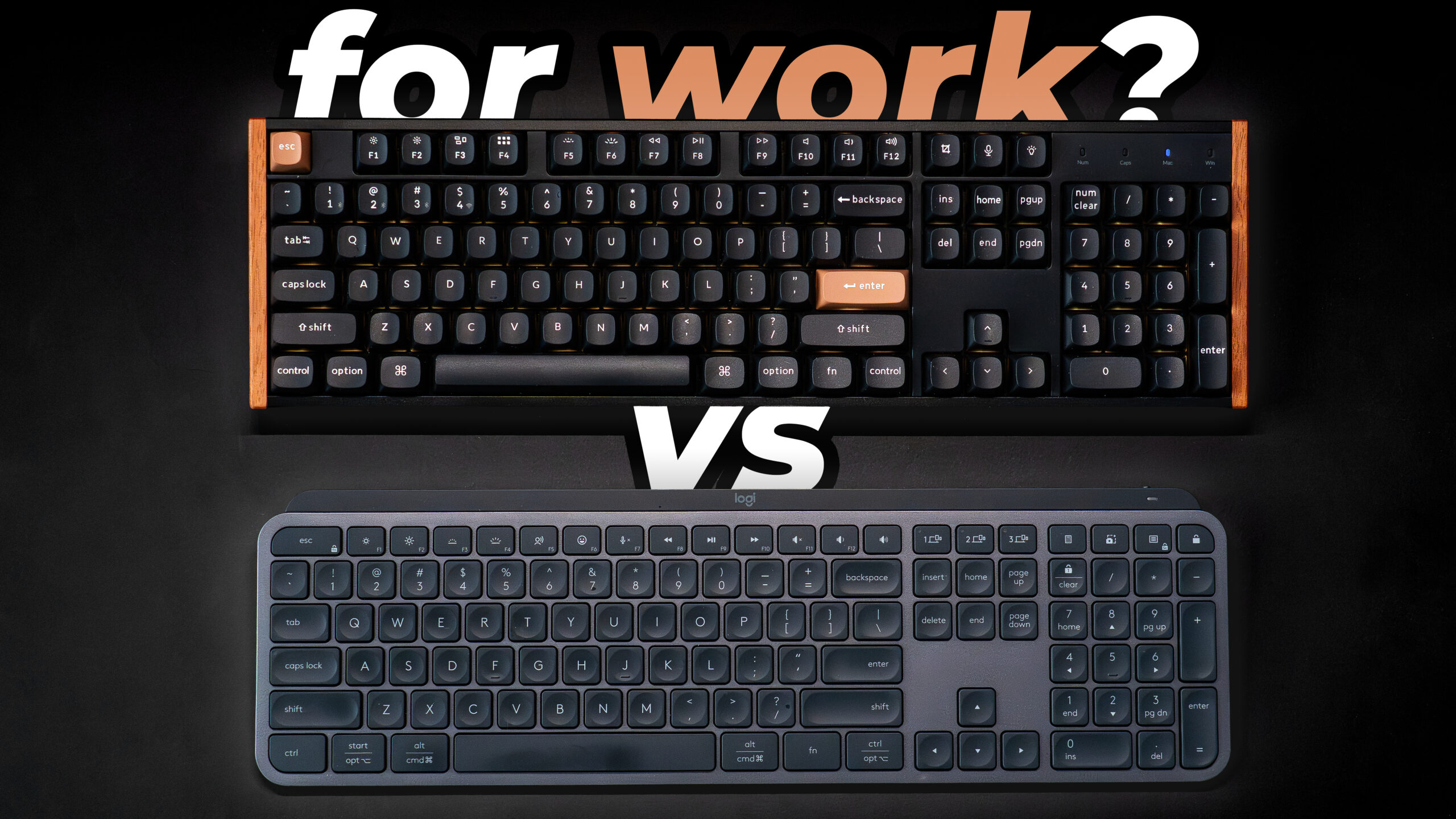
TL;DR: The Bottom Line
- The Question: Can you use a mechanical keyboard strictly for business and productivity? Yes, but you need the right switch technology to avoid driving your coworkers crazy.
- The Winner for Power Users: The Keychron K10 HE. Its magnetic Hall Effect switches eliminate the loud “clack” of traditional mechanicals, and the adjustable actuation points drastically reduce typing errors during long drafting sessions. It’s a serious desk instrument that earns its footprint.
- The Winner for Hybrid/Minimalist Workers: The Logitech MX Keys S. It remains the gold standard for low-profile, quiet, laptop-style typing, complete with excellent software for automating daily workflows.
For years, the mechanical keyboard was the exclusive territory of PC gamers and coders. Walk into a corporate office or jump on an executive Zoom call and you were met with a sea of flat membrane keyboards — quiet, forgettable, and universally “good enough.”
That era is over.
I’ve spent the last several weeks putting two very different keyboards through my actual workday: back-to-back client calls, multi-hour proposal drafts, spreadsheet work, and the general chaos of a heavy technical sales schedule. The question I set out to answer wasn’t just “which keyboard is better” — it was whether a mechanical keyboard for business actually holds up when the gaming features are completely beside the point.
The two keyboards I tested: the Keychron K10 HE with its magnetic Hall Effect switches, and the Logitech MX Keys S, which has been my daily driver for years. Here’s what I found.
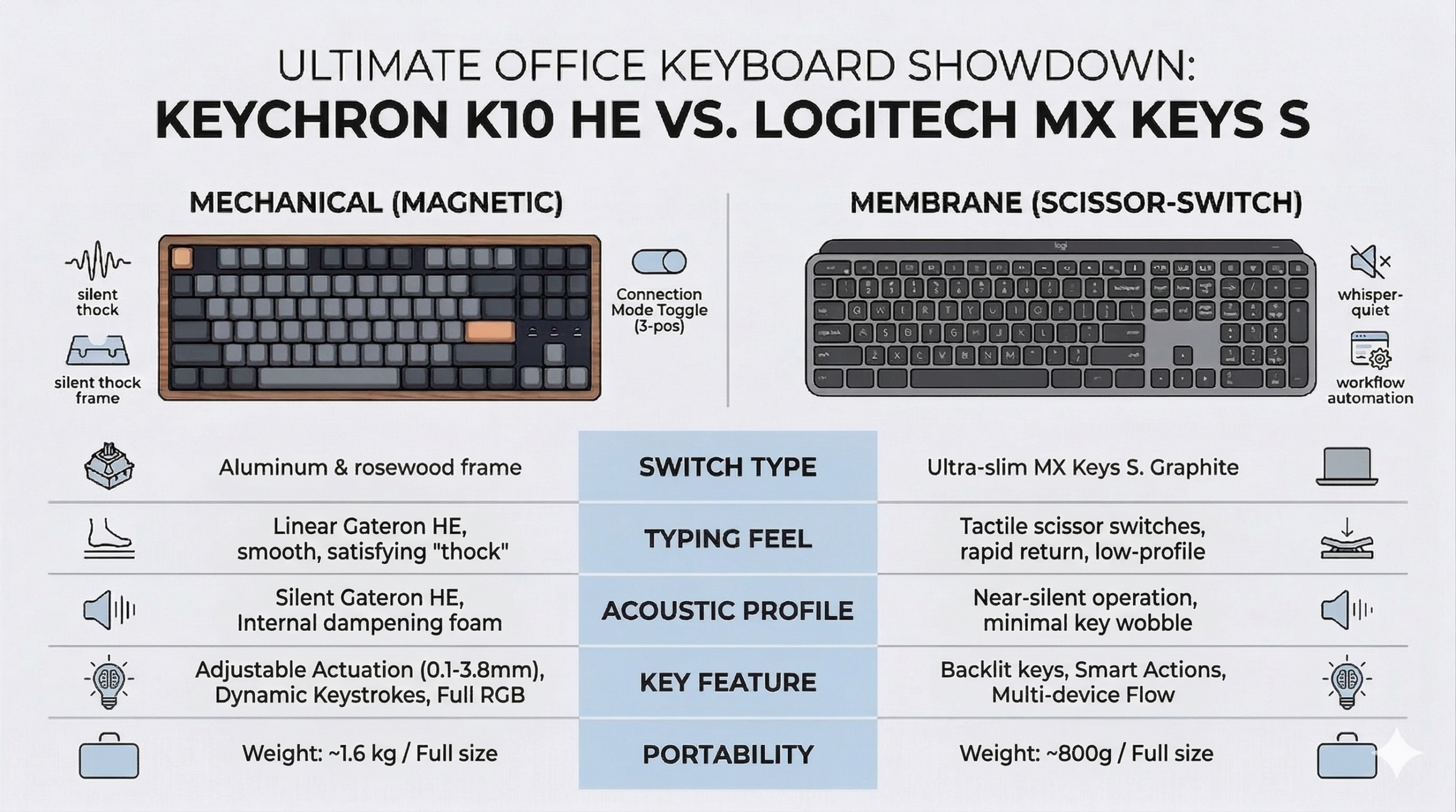
At a Glance: Keychron K10 HE vs. Logitech MX Keys S
| Feature | Keychron K10 HE | Logitech MX Keys S |
|---|---|---|
| Price | ~$134.99 – $144.99 | ~$119.99 |
| Switch Type | Gateron Magnetic Nebula (Hall Effect) | Scissor-Switch Membrane |
| Actuation Point | Adjustable (0.2 mm to 3.8 mm) | Fixed (Short Travel) |
| Acoustic Profile | Muted, low “thock” (Heavy foam dampening) | Near-silent, crisp laptop-style |
| Connectivity | Wired, Bluetooth, 2.4 GHz Wireless | Bluetooth, Logi Bolt USB Receiver |
| Software | Keychron Launcher Web App (Open Source QMK) | Logi Options+ (Features “Smart Actions”) |
| Layout & Build | Full-Size, Tall profile, Aluminum/Wood frame | Full-Size, Low profile, Slim minimalist frame |
| Mac/Windows Support | Yes (Physical toggle & swappable keycaps) | Yes (Seamless switching) |
| Standout Feature | Dynamic Keystrokes (Multi-action per key depth) | Smart Illumination & Workflow Automation |
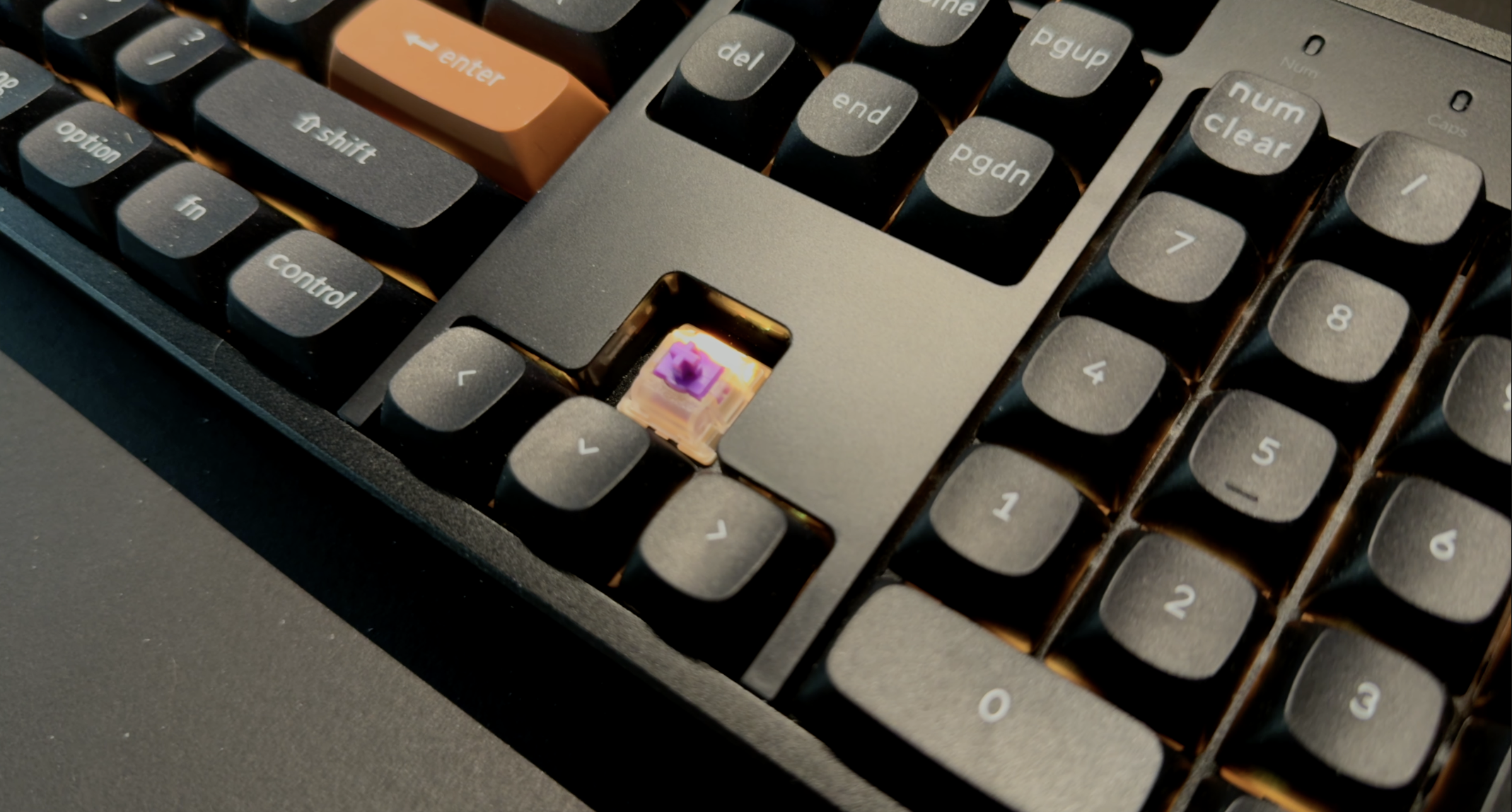
Why Magnetic Switches Are a Different Animal for Business Use
Before getting into the head-to-head, it’s worth understanding what makes the Keychron K10 HE fundamentally different from a traditional mechanical keyboard — because if you’ve dismissed mechanicals as “too loud for the office,” this is the part that changes the calculation.
Traditional mechanical switches (Cherry MX Blues, Reds, Browns) work by two metal contacts physically touching to register a keystroke. That contact creates friction, produces noise, and gives you a fixed actuation point you can never adjust. The clack you’ve heard from a mechanical keyboard your whole career comes directly from that metal-on-metal contact.
The K10 HE uses Gateron Double-Rail Magnetic Nebula switches, which work completely differently.
No Contact, No Clack
Instead of metal leaves touching, these switches use a magnet and a Hall Effect sensor to detect exactly how far down you’ve pressed the key — continuously, with no physical contact at all. The result is a switch that is inherently smoother and quieter than any traditional mechanical. Pair that with the three layers of sound-dampening foam (EVA, EPDM, and silicone) inside the chassis, and what you actually hear is a low, muted thud. I ran it through several back-to-back Zoom calls without a single comment from anyone on the other end.
Adjustable Actuation: The Feature That Actually Matters for Typing Accuracy
This is the one that surprised me most. Because the sensor reads keystroke depth continuously, you can set the exact point at which a keypress registers — anywhere from 0.2mm to 3.8mm. I settled on around 2.2mm after a few days of testing, which means I can rest my fingers on the keys while thinking through a sentence without accidentally firing off characters. If you’ve ever come back to a document and found a string of “ffffffff” because you were thinking with your fingers resting on the keys, you’ll immediately understand why this matters.
Dynamic Keystrokes: A Genuine Productivity Tool
Because the switch knows exactly how far you’ve pressed it, you can map different actions to different press depths on the same key. A half-press triggers one action, a full press triggers another. I set this up for a few repetitive workflows and it cuts out more keystrokes than you’d expect over a full day. It’s genuinely useful, not just a spec sheet talking point.
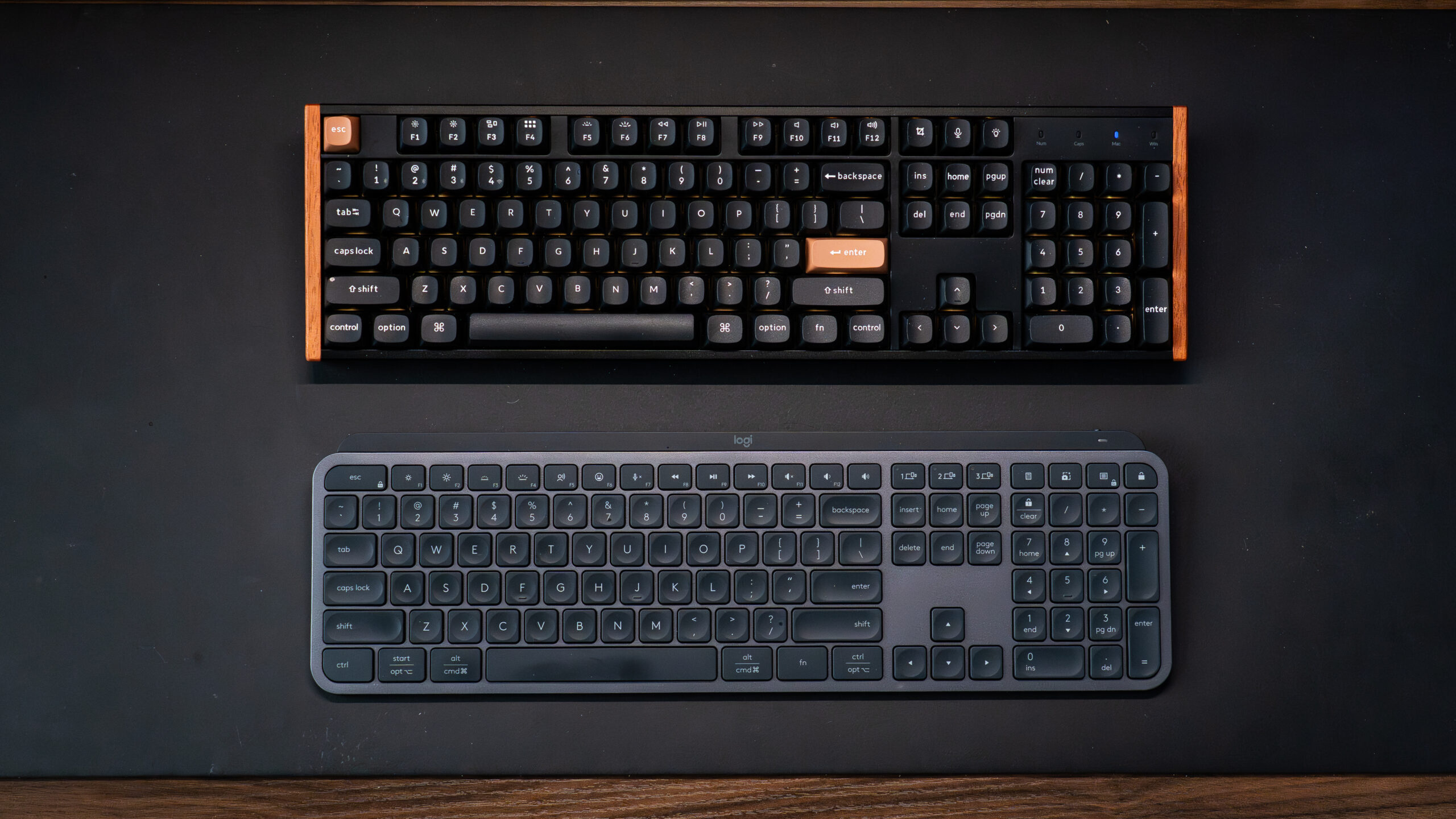
The Head-to-Head
Typing Experience and Accuracy
Logitech MX Keys S: I used the MX Keys S as my primary keyboard for about two years before this test, so I know it well. The low-profile, spherically-dished keys guide your fingers to center naturally and the short travel makes typing fast and light. You don’t need a wrist rest. It’s consistent, quiet, and about as close to a premium laptop keyboard as you can get on a desktop. The downside is that same short travel — there’s no physical confirmation when a key registers, which can lead to missed keystrokes during fast typing if you’re not bottoming out every press.
Keychron K10 HE: Switching to the Keychron after two years on the MX Keys S required about two days of adjustment — the key height is significantly taller and a wrist rest becomes necessary for long sessions. Once I dialed in the actuation point to 2.2mm, my error rate on long document drafts dropped noticeably. The physical feedback of each keystroke is clear and consistent. After a full week on it, going back to the MX Keys S felt strangely flat. That said, if you type lightly and prefer minimal key travel, the adjustment period may not be worth it for you.
Looks and Build
Logitech MX Keys S: Slim, matte, and completely unobtrusive. Available in Graphite or Pale Gray, it fits cleanly into any desk setup without demanding attention. The proximity-triggered backlighting is a nice touch — it activates when your hands approach and fades when you step away. It looks exactly like what it is: a well-engineered professional tool.
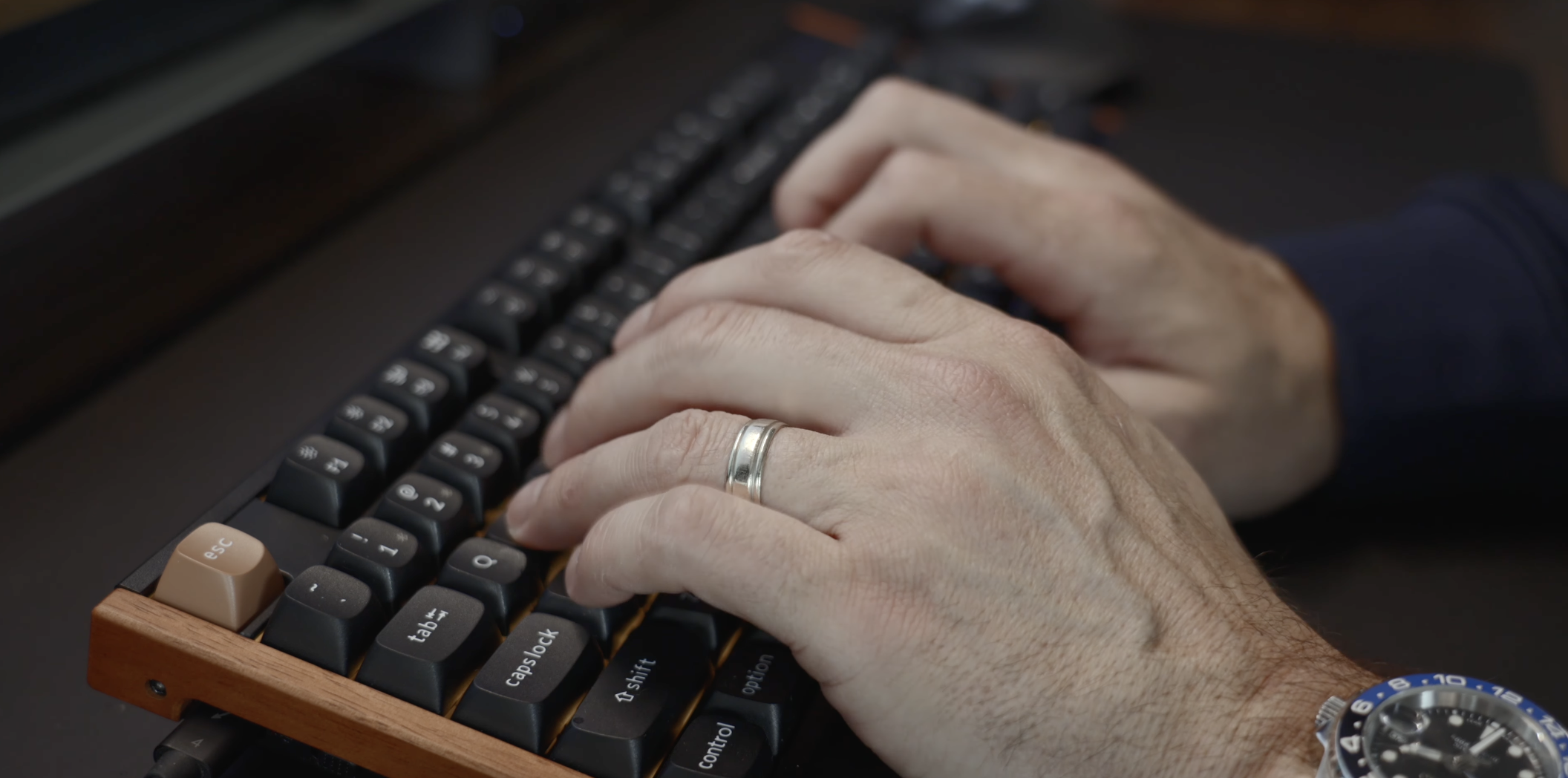
Keychron K10 HE: This keyboard has physical presence. The aluminum frame is solid and heavy, and the Special Edition rosewood accents — light wood on the white version, dark wood on the black — make it look like a piece of intentional desk hardware rather than an off-the-shelf peripheral. It’s not subtle. Whether that’s a positive depends entirely on your setup, but it doesn’t look remotely like a gaming keyboard. The trade-off is that it doesn’t travel. This stays on the desk.
Software and Productivity Integration
Logitech MX Keys S: Logi Options+ is genuinely well-designed software. The “Smart Actions” feature lets you chain together multi-app workflows and trigger them with a single key. If your morning routine involves launching the same three apps in sequence, you can map that to one button and never think about it again. It’s the kind of feature that non-technical users will actually use, which is the whole point.
Keychron K10 HE: The Keychron Launcher runs in a browser tab, which feels a little unusual at first, but it’s straightforward to use. You can adjust actuation sliders, remap keys, and configure Dynamic Keystroke actions without needing any technical background. It’s less polished than Logi Options+ but considerably more powerful for anyone willing to spend an hour setting things up. The Dynamic Keystroke configuration alone — mapping different actions to different press depths — is something Logi Options+ simply can’t replicate with fixed membrane switches.
Pros and Cons
Keychron K10 HE
Pros:
- Adjustable actuation: Set the exact press depth that matches your typing style — reduces errors meaningfully on long drafts.
- Sound profile: Quiet enough for open offices and conference calls. The foam dampening does real work.
- Build quality: Heavy aluminum chassis with rosewood accents. It feels permanent on a desk.
- Dynamic Keystrokes: Mapping multiple actions to a single key by press depth is a legitimate productivity feature.
- Repairability: Hot-swappable switches mean the board can last indefinitely.
Cons:
- Height requires a wrist rest: This is not optional for long sessions — budget for one if you go this route.
- Software learning curve: More powerful than Logi Options+ but takes longer to set up.
- Not portable: Heavy and bulky. It lives on your desk.
Logitech MX Keys S
Pros:
- Immediate comfort: Low-profile keys feel instantly familiar, especially if you’re coming from a laptop keyboard.
- Logi Options+: Best-in-class workflow automation software for non-technical users.
- Clean design: Works in any setup without standing out.
- Portable: Slim enough to pack for hybrid or travel days.
Cons:
- No tactile confirmation: The short travel makes missed keystrokes more common during fast typing.
- Fixed experience: Actuation point, switch feel, and key response are locked in — nothing adjusts to your preferences.
- Degrades over time: Membrane switches lose their feel with heavy use in a way that Hall Effect sensors don’t.
The Verdict
After several weeks of daily use on both, here’s where I landed.
The Logitech MX Keys S is still the right call if you want something that works flawlessly out of the box, travels well, and has software that non-technical users will actually take advantage of. It’s reliable, quiet, and requires zero adjustment period. I used it for years for a reason.
But the Keychron K10 HE is the better keyboard for anyone who types heavily and spends serious hours at a desk. The adjustable actuation genuinely changed my error rate on long documents. The sound is quieter than I expected going in. And once you’re past the adjustment period, the physical feedback of each keystroke makes the MX Keys S feel like you’re typing on a laptop. For a stationary desk setup, the Keychron wins.
Who Is This For?
Choose the Keychron K10 HE if: You spend the majority of your workday drafting documents, writing code, or handling high-volume written communication. You want a keyboard you can tune to your exact typing style and that will hold up for years of daily use without degrading.
Choose the Logitech MX Keys S if: You work across multiple locations and need something easy to move and quick to set up. You prefer a minimal learning curve and want intuitive software that automates your daily workflow without any configuration deep-dives.
Frequently Asked Questions
Will a mechanical keyboard annoy coworkers or get picked up on Zoom calls? A traditional clicky mechanical will, yes. The Keychron K10 HE is a different situation — the Hall Effect switches combined with the internal foam dampening produce a low, muted sound that’s easy to miss on a call. I tested this across multiple video calls and had no complaints. It’s quieter than you’d expect.
Do I need a technical background to configure the Keychron software? No. The Keychron Launcher runs in a browser and uses sliders and drag-and-drop remapping. Adjusting the actuation point takes about two minutes. The more advanced Dynamic Keystroke setup takes longer but there are clear guides available.
Why does adjustable actuation matter for typing — isn’t that a gaming feature? Gamers use it to shorten the actuation point for faster inputs. For business use, the value is the opposite — raising the actuation point so the keyboard ignores light, accidental key touches. If you type with any resting pressure on the keys, this reduces errors noticeably.
Do both keyboards work on Mac and PC? Yes. The MX Keys S switches between operating systems seamlessly. The Keychron K10 HE has a physical OS toggle switch and includes replacement keycaps for both Mac and Windows layouts.
Are both keyboards wireless? Yes. The MX Keys S uses Bluetooth and the Logi Bolt USB receiver. The Keychron K10 HE supports wired USB-C, Bluetooth, and a 2.4 GHz wireless dongle — useful if you want a cable-free desk without any latency concerns.