For professionals who have spent years refining a home office, hitting the road often feels like a compromise. Hunching over a laptop in a hotel room or coffee shop isn’t just uncomfortable—it’s a productivity killer. The “tech neck” sets in after an hour, and the trackpad efficiency drops off when you are trying to crunch serious workflows.
After testing countless configurations, I’ve locked in a “Holy Trinity” of travel peripherals that turns any hotel desk into a workspace rivaling a dedicated home office. This setup is built around the Roost Laptop Stand, the Keychron B1 Pro, and the Logitech MX Master.
Here is why this is the definitive setup for traveling professionals using a powerhouse machine like the MacBook Pro (M2 Max), and how to pack and use it effectively.
Shop This Setup
Don’t want to read the deep dive? Here is the exact gear I use to turn any hotel room into a professional workspace.
- The Foundation: Roost Laptop Stand V3
- The Keyboard: Keychron B1 Pro Slim
- The Mouse: Logitech MX Master 3S
The Core Philosophy: Ergonomics Without Bulk
The goal of this setup is simple: Zero Compromise. You need the screen at eye level to save your neck, and you need input devices that allow for high-speed execution. However, it all has to fit in a standard backpack without weighing you down.
1. The Foundation: Roost Laptop Stand V3
- Price: ~$90 USD
- Weight: ~6 oz
- Key Feature: Height adjustability (6–14 inches) & extreme portability.
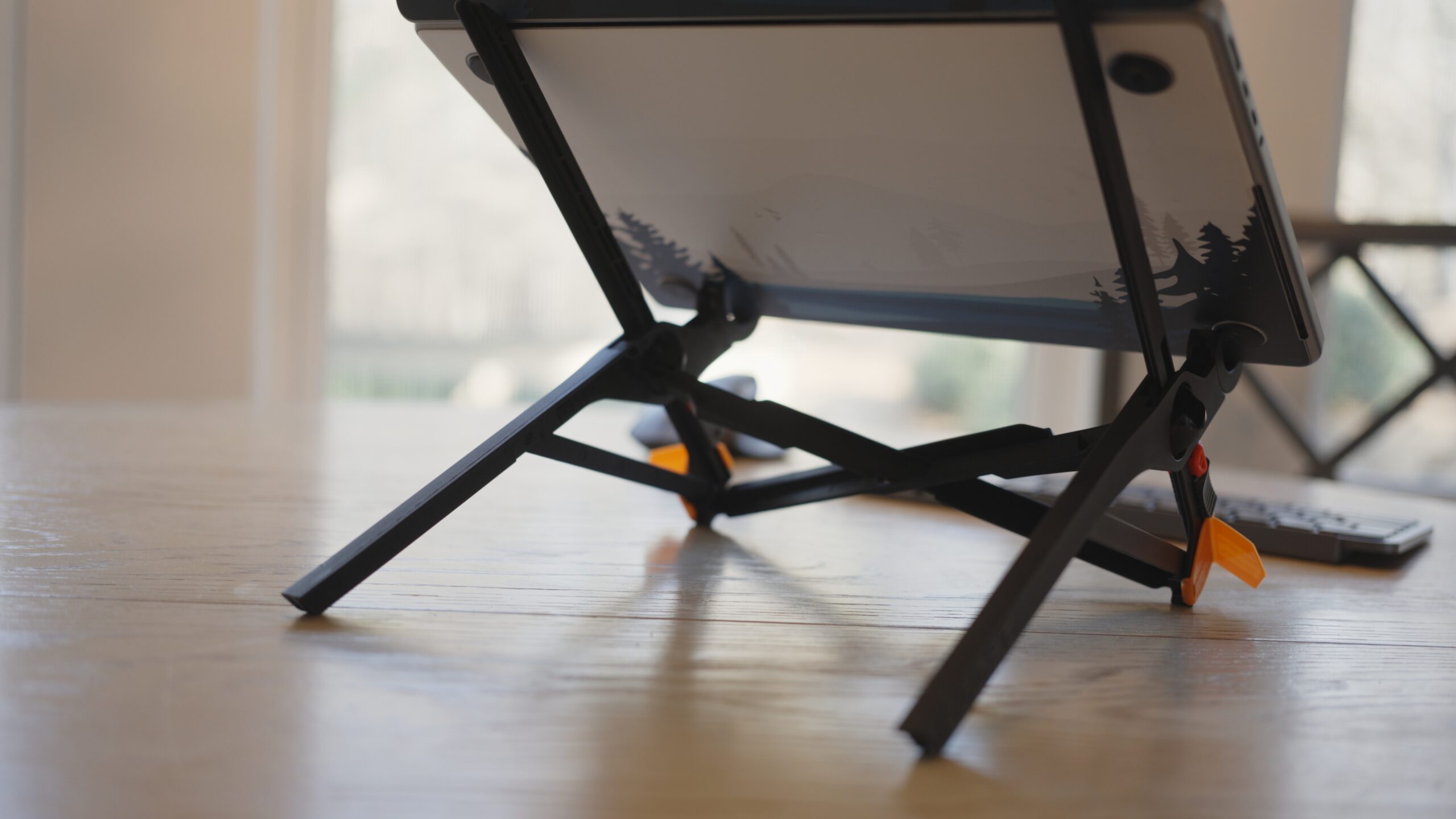
The Roost Stand is widely considered the gold standard for digital nomads, and for good reason. Unlike cheap aluminum knockoffs, the Roost uses a glass-fiber-reinforced nylon construction that is incredibly light but sturdy enough to hold a heavy 16-inch MacBook Pro without a wobble.
Why it’s essential:
- Ergonomics: It elevates your MacBook screen to natural eye level. This prevents you from looking down, keeping your cervical spine neutral and preventing neck strain during long work sessions.
- Cooling: By suspending the laptop by the front chassis, it exposes the entire bottom case of your M2 Max MacBook Pro to airflow, helping the powerful chip sustain peak performance without thermal throttling.
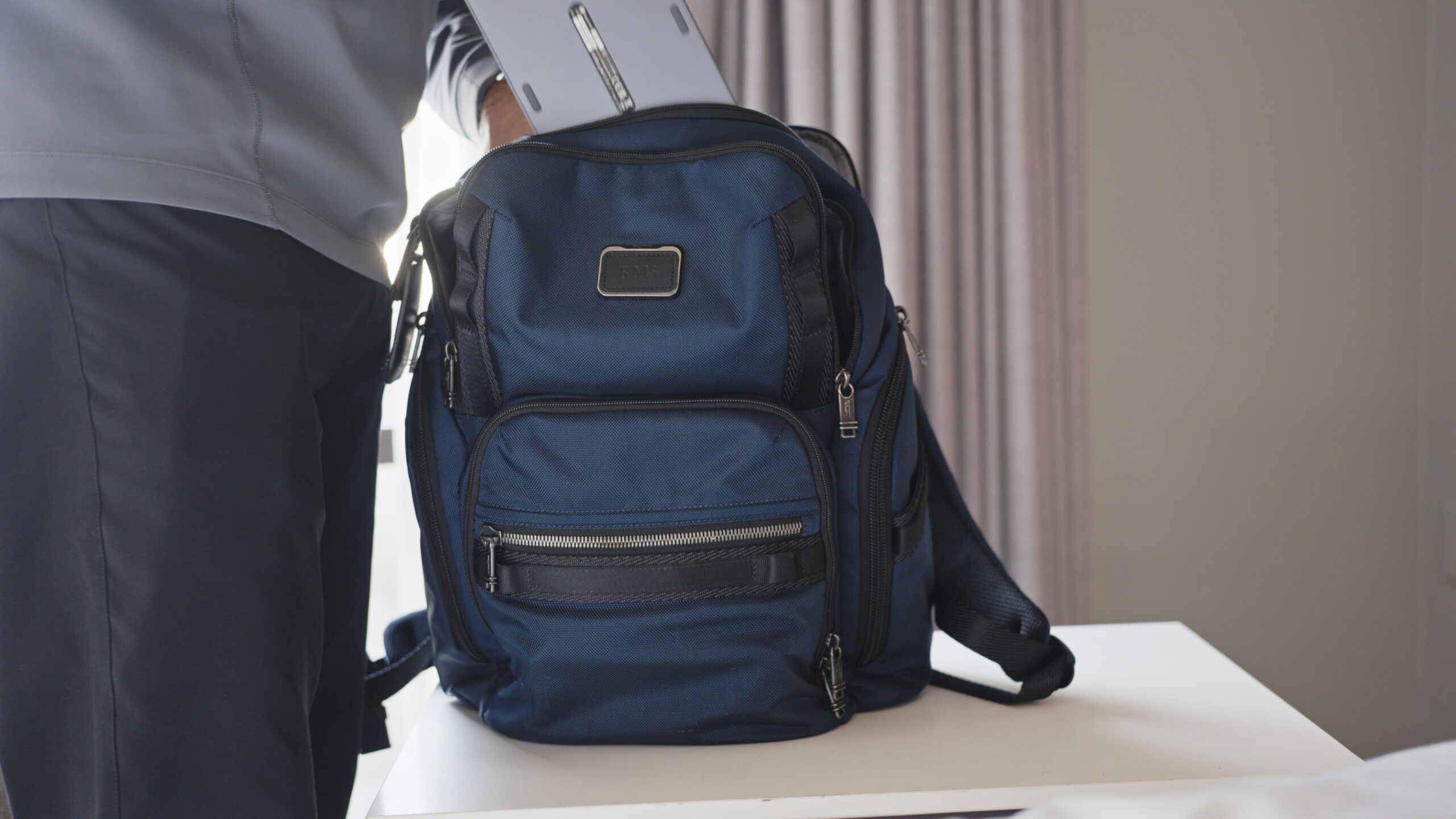
- The Pack-Down: It collapses into a thin stick (1.3″ x 1.3″ x 13″) that slides into any backpack gap.
While this setup is incredibly sturdy, if you want to see the exact folded dimensions and how it compares to the cheaper Nexstand, check out my full Roost Laptop Stand V3 review over on GearUpTravel.
2. The Typist’s Dream: Keychron B1 Pro Slim
- Price: ~$40 USD
- Battery Life: Up to 1,200 hours (approx. 8 months of daily use)
- Key Feature: Ultra-slim profile with “Mac-perfect” layout.
While mechanical keyboards are great, they are often too bulky and loud for travel. The Keychron B1 Pro is the perfect middle ground. It uses a high-quality scissor mechanism (similar to the Magic Keyboard but with deeper, more tactile feedback) and creates a silent, efficient typing environment.
Why it wins for travel:
- ZMK Support: You can remap keys and create macros just like on a pro mechanical board, essential for power users.
- Connectivity: It supports Bluetooth 5.2 (for phone/tablet) and includes a 2.4GHz dongle (1000Hz polling rate) for lag-free connection to your Mac.
- Durability: It often comes with a silicone cover, which protects the keys from crumbs or spills in a coffee shop and keeps the keycaps from getting scratched in your bag.
- Size: It is impossibly thin and light, sliding right into a laptop sleeve alongside your computer.
love the battery life on this thing, but for a deeper dive into the ZMK software and switch travel, read my comprehensive Keychron B1 Pro review.
3. The Productivity Beast: Logitech MX Master 3S
- Price: ~$99 USD
- Sensor: 8,000 DPI Darkfield (Tracks on glass)
- Key Feature: MagSpeed Electromagnetic scrolling & App-specific customizations.
The MX Master 3S (or the previous gen 3) is the undisputed king of productivity mice. While it is not the smallest “travel” mouse, the trade-off in size is worth the gain in functionality.
Why you need it:
- Tracks Anywhere: The Darkfield sensor tracks perfectly on glass hotel desks—a surface that renders standard optical mice useless.
- Gesture Control: You can map the thumb button to macOS gestures (Mission Control, Desktop switching), making navigation on a single screen as fast as a multi-monitor setup.
- MagSpeed Wheel: The scroll wheel can toggle between ratchet mode (precision) and free-spin (scrolling thousands of lines of code or Excel sheets in a second).
The Workflow: How They Work Together
This trio works in harmony to replicate a desktop environment.
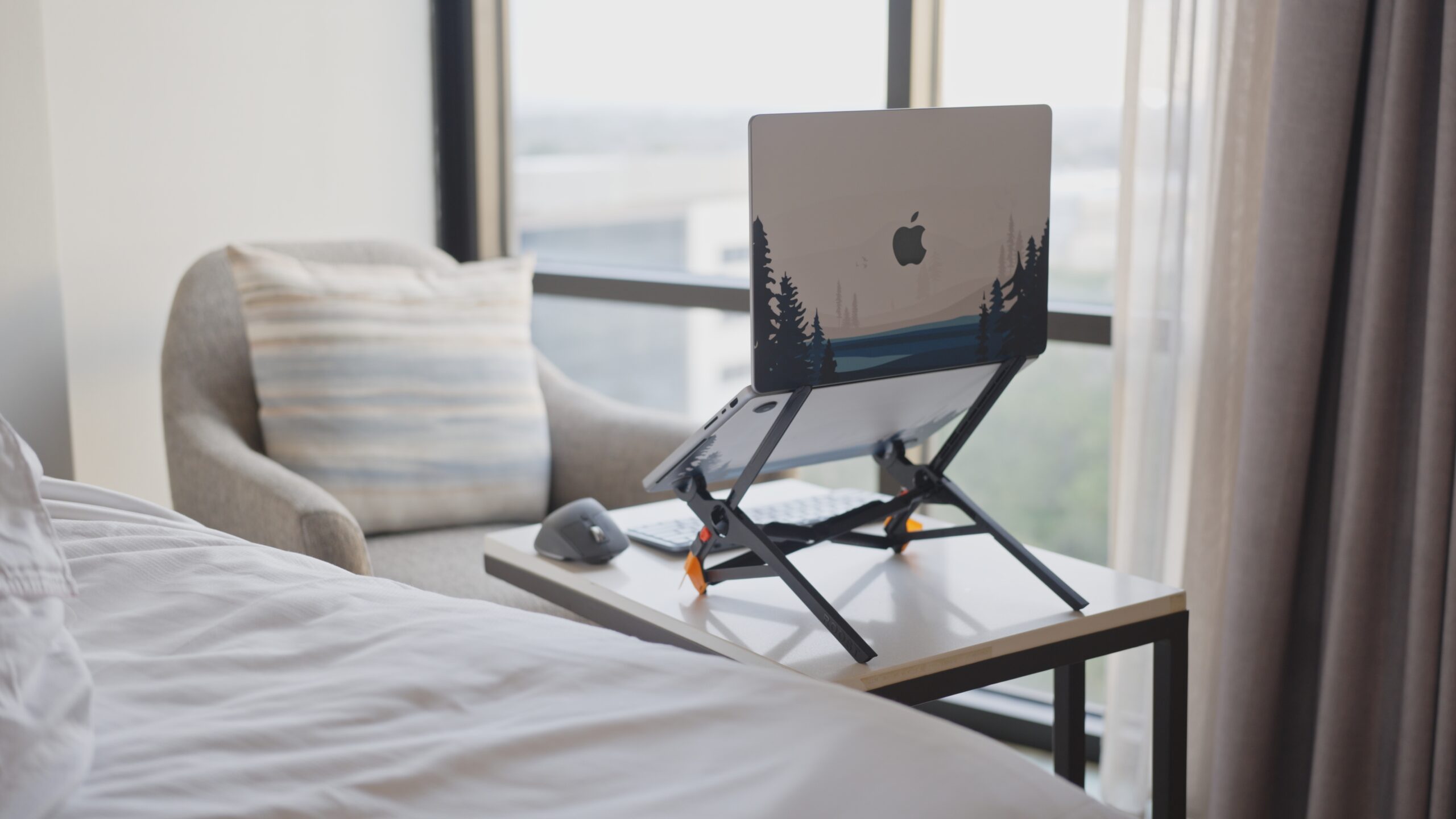
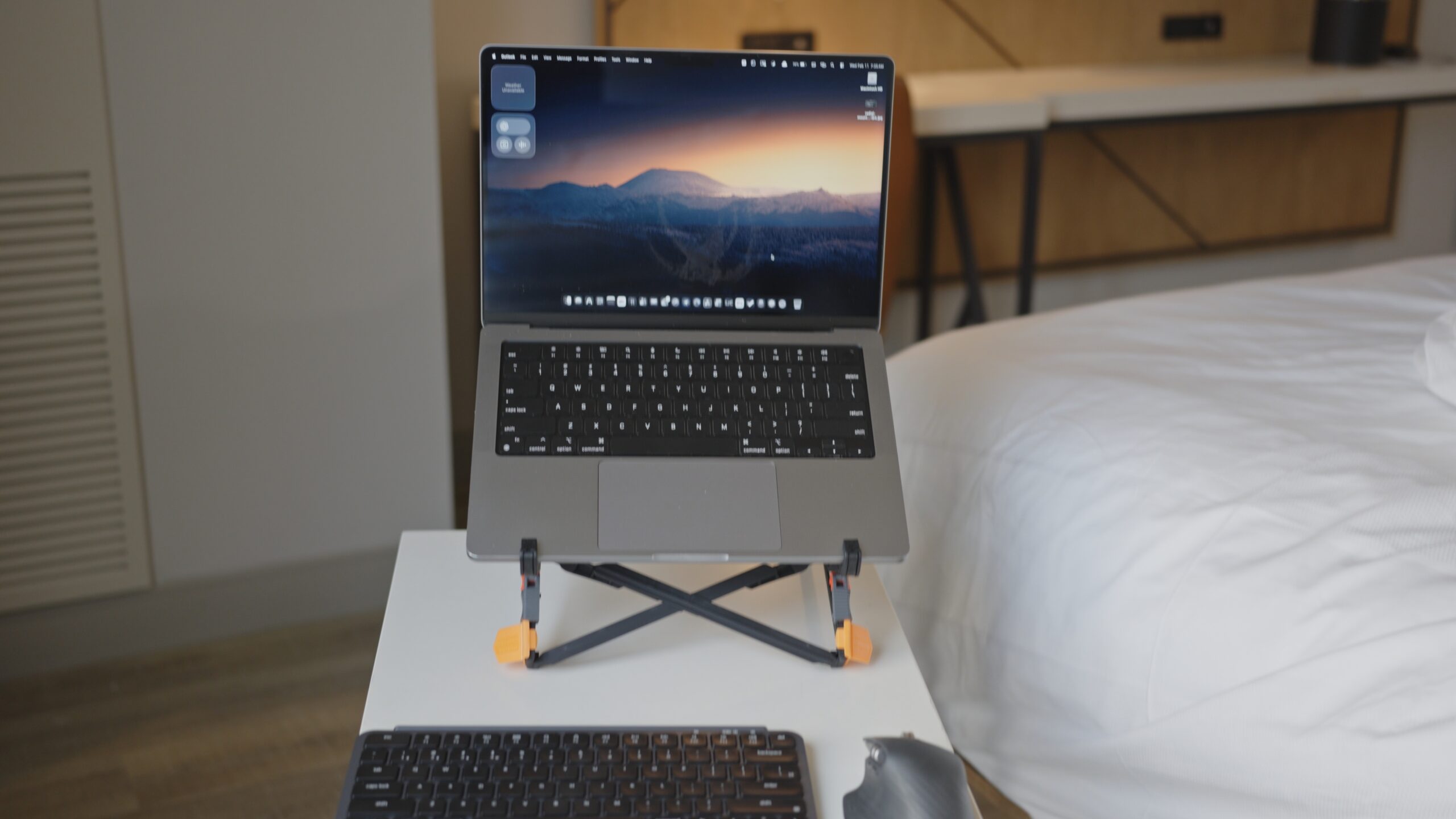
- Setup: You arrive at your hotel. You pop open the Roost (takes 2 seconds) and mount your MacBook Pro. The screen is now an external monitor.
- Connection: You flip the switch on the Keychron B1 Pro and MX Master. Both connect instantly via Bluetooth (or the shared dongle if you prefer). Because the Keychron has a native Mac layout, your muscle memory for shortcuts (
Cmd+C,Cmd+Space) remains unbroken. - The Result: You are now sitting back in your chair, arms resting at a perfect 90-degree angle, typing on a tactile keyboard while your eyes look straight ahead. You are no longer “making do” with a laptop; you are working.
Traveling & Packing Guide
Packing this setup is surprisingly easy because the components are designed to be slim or collapsible.
- The Roost: Store this in the “umbrella” or water bottle side pocket of your bag, or the thin vertical slot in your tech pouch.
- The Keychron B1 Pro: Place this inside the laptop compartment of your bag, facing away from the laptop (to avoid keycap pressure on the screen), or in a dedicated tablet sleeve. Its slim profile takes up virtually zero volume.
- The MX Master: This is the bulkiest item. I recommend a small hard-shell case (widely available on Amazon) to protect the buttons from being pressed in transit, or simply nestle it in a tech pouch with your cables.
Ergonomics: Laptop vs. The “Mobile Office”
The “Hunch” (Laptop Only): When working directly on a laptop, your head tilts forward about 45-60 degrees. This exerts roughly 60 lbs of force on your cervical spine. Your shoulders roll forward to reach the keyboard, compressing your chest and restricting breathing. Your wrists extend upward (dorsiflexion) to use the trackpad, compressing the carpal tunnel.
- Result: Fatigue within 1 hour; pain within 4.
The “Stack” (This Setup):
- Neck: Neutral. The Roost puts the top third of the screen at eye level. Your head balances effortlessly on your spine.
- Shoulders: Open. Because the keyboard and mouse are separate, you can position them shoulder-width apart, preventing the internal rotation required by a cramped laptop keyboard.
- Wrists: Neutral. The B1 Pro is so slim it doesn’t require a wrist rest; your hands float naturally over the keys without bending upward.
Conclusion: Investing in Your Workflow
When you look at the total cost of this setup, you are looking at roughly a $250 investment. For many, that might seem steep for “accessories.” But you have to look at the bigger picture. You have likely spent upwards of $3,000 for a machine like the M2 Max MacBook Pro because you need peak performance, speed, and reliability.
Why would you handicap that investment by hunching over it in a dimly lit hotel room, navigating complex timelines or spreadsheets with a trackpad?
This setup is about removing friction. It’s about walking into a hotel room, spending 60 seconds setting up, and immediately having the same ergonomic, high-efficiency experience you have at your home desk. The Roost Standprotects your posture, the Keychron B1 Pro protects your typing speed, and the Logitech MX Master ensures your navigation keeps up with your thoughts.
You aren’t just buying travel gear; you are buying the ability to operate at 100% capacity, anywhere in the world, without physical pain. It is the difference between just “working from the road” and truly bringing your office with you.
Get the gear and upgrade your travel workflow: